The Transfer Order module allows users to complete transfer orders directly on LilyPad.
The Transfer Order module can be found under the Inventory group.
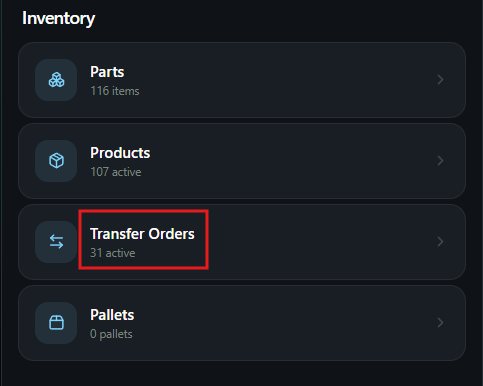
From the Transfer Order module, users can create new transfer orders or choose an existing transfer order to complete.
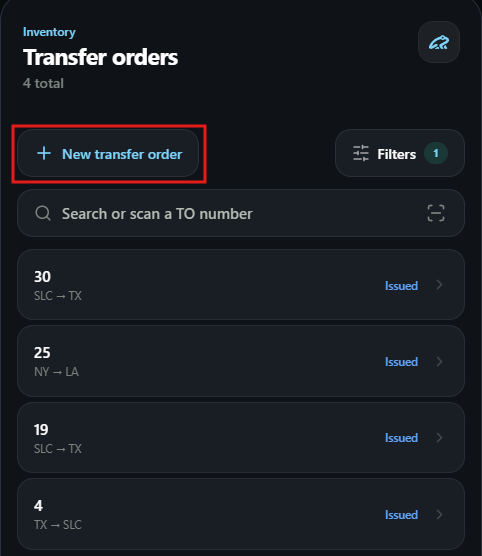
Creating a New Transfer Order #
Once users select the “New Transfer Order” button at the top of the page, they will be moved to the Transfer Order creation page.
This page will have users enter in the necessary location data, carrier, and part information to create the transfer order.
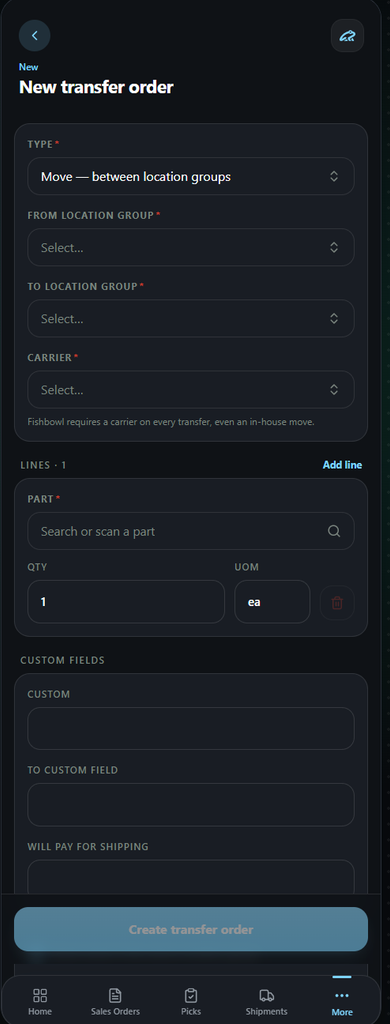
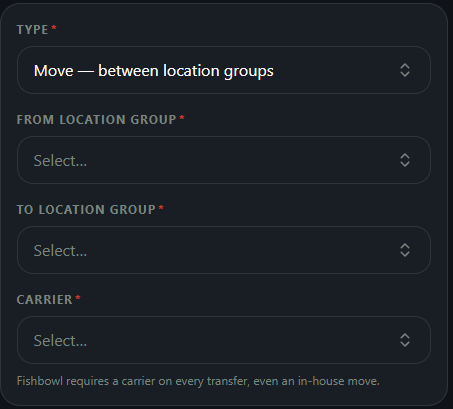
In the first section of this page, users will enter in the transfer orders type (Move, Ship, or Putaway) and the locations these parts will move to and from.
Users will also have to choose a carrier for this Transfer order in this section.
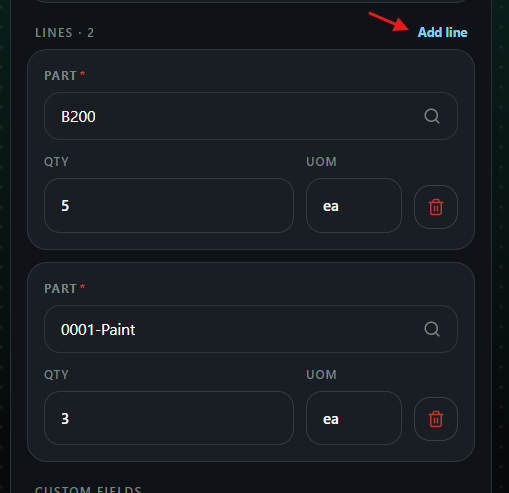
The next section consists of the lines or parts that will be on the transfer order.
Users can enter in the parts and quantity needed and also add extra parts by using the “Add Line” button.
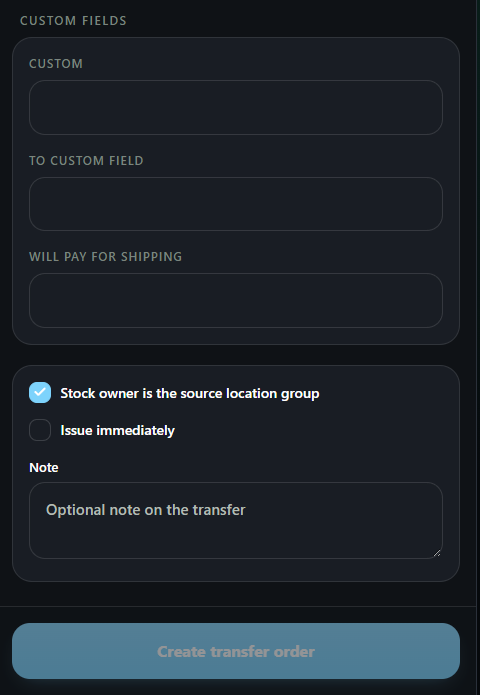
The final step is to enter in any necessary custom field information and choose to issue the order immediately.
These are not required and, if you do not use custom fields, this section may not appear.
When all the required information is entered, users can choose the Create Transfer Order button at the bottom of the page.
Existing Transfer Orders #
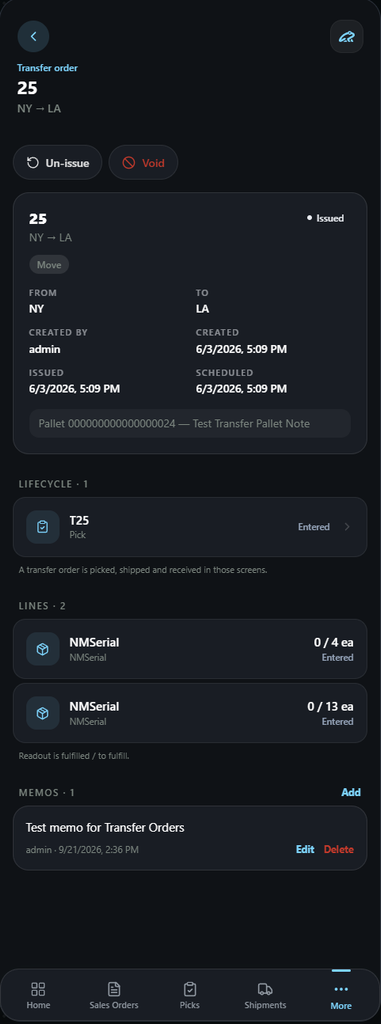
- Order Information-
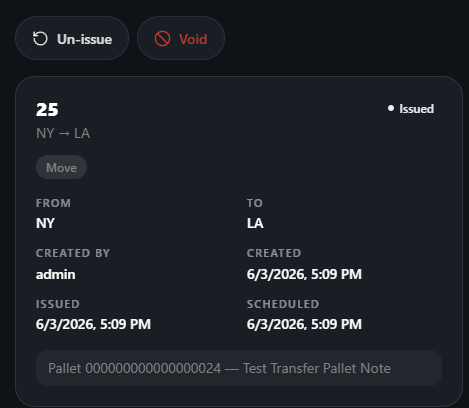
The top portion of the transfer order page will show the information pertaining to this order.
This includes dates of the life of the order, who it was created by, where the transfer order is being sent to and from.
- Depending on the users permissions, they could also un-issue or void the order at the top of the screen.
Lifecycle-
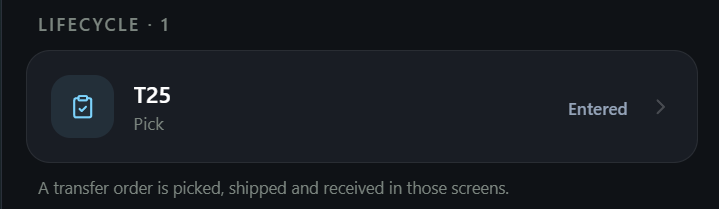
The Lifecycle will show the current status of the transfer order. Users can click on the line(s) to move directly to the pick for the transfer order.
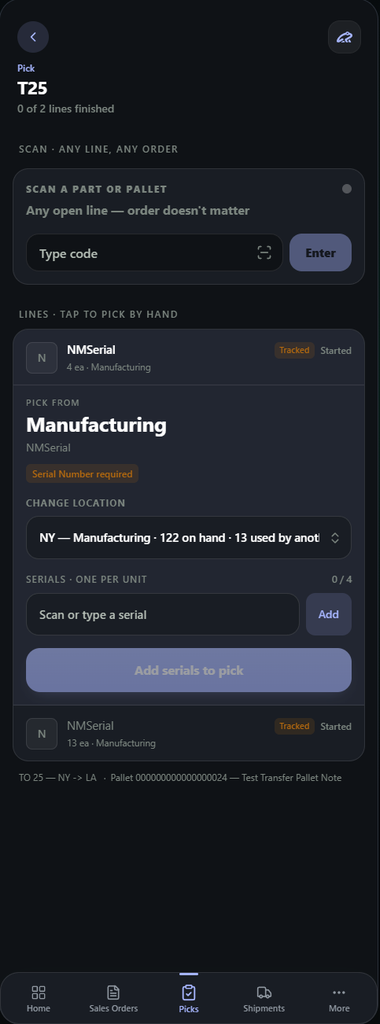
When moving to the pick, users can complete this transfer order by doing a regular pick for the items.
(You can see more about picks in the Pick section)
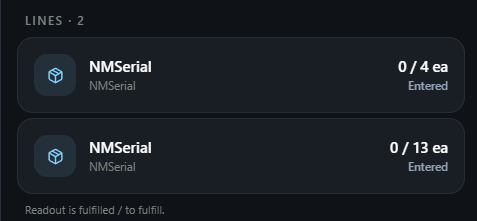
Lines-
This section will display the current parts listed on the transfer order and their current quantities currently picked.
Custom Fields and Memos-
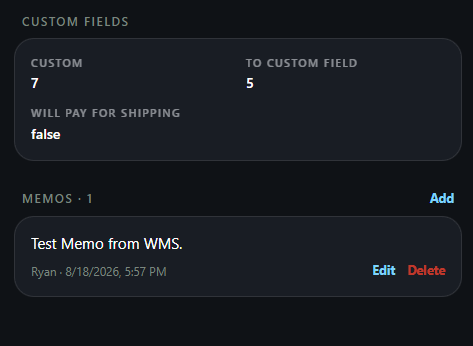
Some transfer orders will also have custom field information or memos(notes) on them. This information will be displayed at the bottom of the page.
- Memos can be added on the LilyPad page as well by clicking the blue “add” button on the right side of the screen.