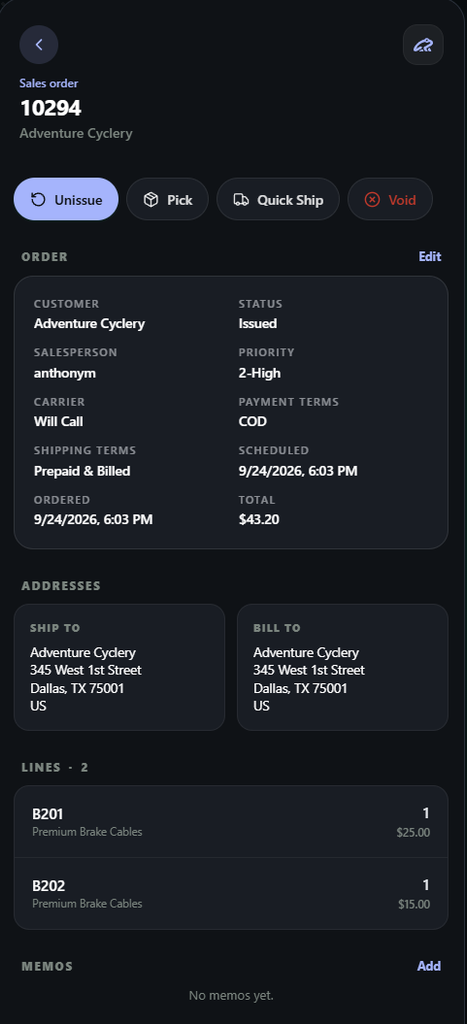
The Sales Order module on Lilypad is where users can go to create, view, and edit sales orders.
Users can find this module under the Sales grouping or as an option at the bottom of the site.
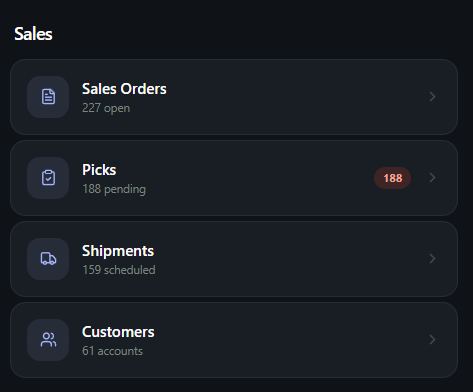
Creating New Sales Orders #
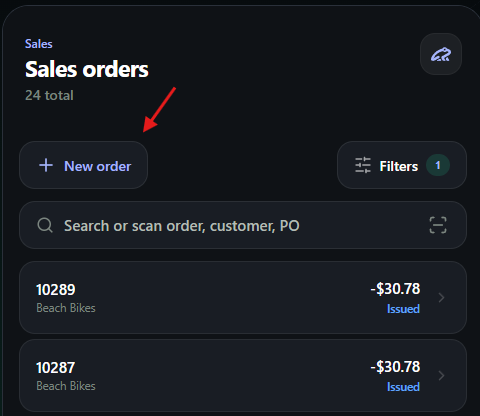
When users navigate to the Sales Order module they can choose to create new Sales Orders by selecting the “New Order” button.
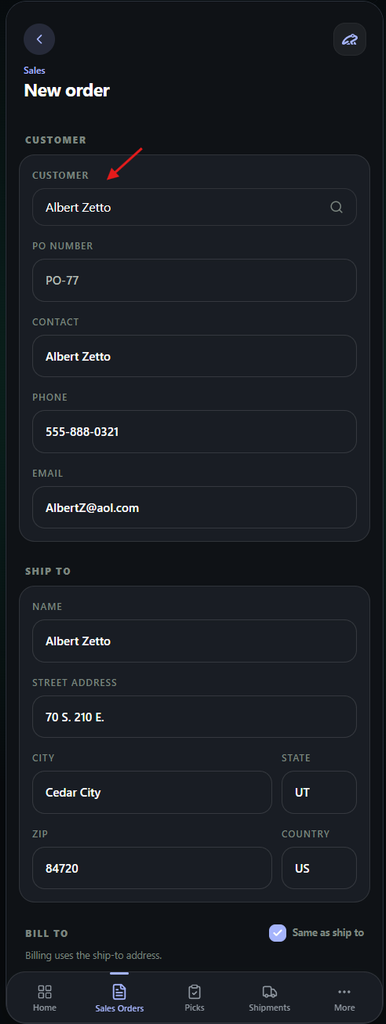
Users will then be moved to the Sales Order creation page.
From this page, users will first need to choose a customer to make this sales order for.
- When selecting a customer, this will also auto-fill the Ship to and Bill to address boxes. Users can still change this information if needed after it auto-fills.
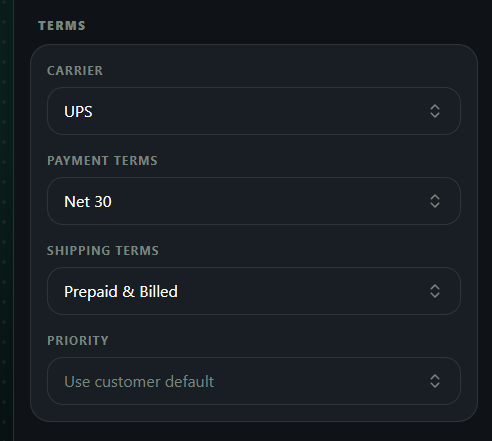
The next step of the sales order creation is the Terms section. This includes the carrier, payment and shipping terms.
This information is usually auto-filled once the customer is selected but can be manually edited if needed.
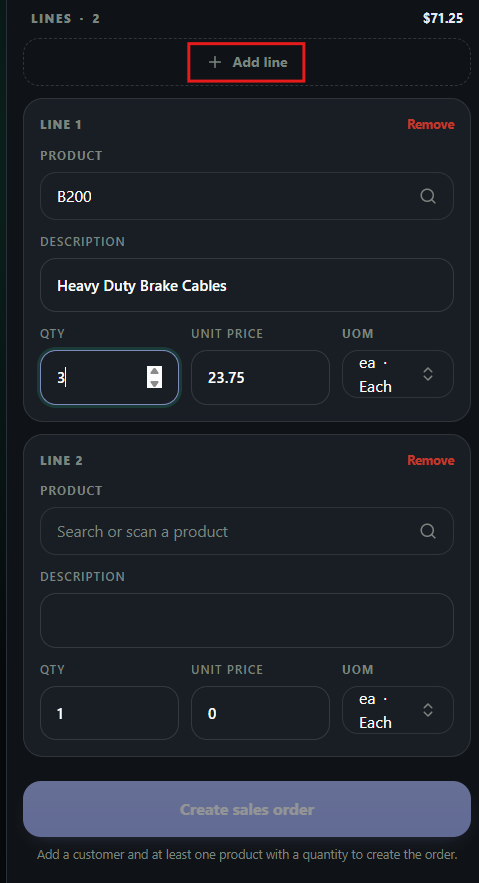
The final step to create the new sales order is to add the line items / products.
Users will search or scan a product directly into the search bar. This will populate the price and unit of measure, but these can be changed if the user has the correct permissions.
- Additional lines can be added using the “Add Line“box
Existing Sales Orders #
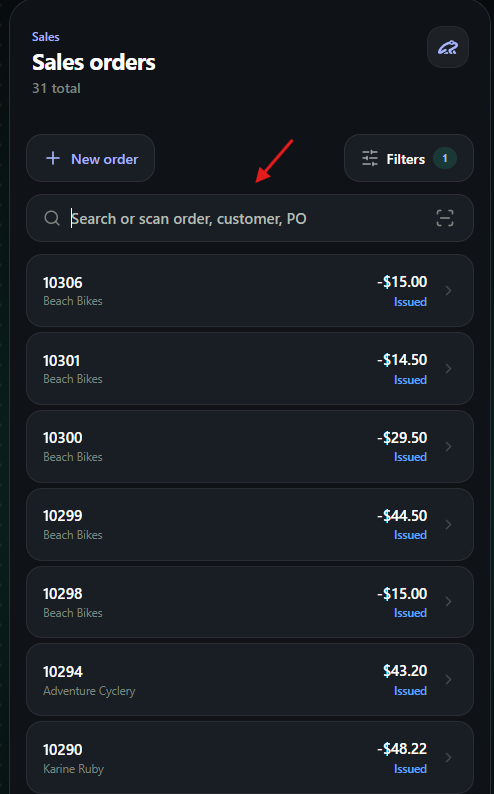
Users also have the option to have select an existing sales order to view the contents of it.
You can either manually enter in an order number or scan a code to pull up the sales order
Once a sales order is opened, users will see the sales order information displayed.
This includes the customer, terms and limits, ship/bill to information, and products.
From this page, users can navigate to the pick screen or chose to quick ship the order using the buttons at the top.
- Users can also have the option to unissue orders or void them completely if they have the correct permissions enabled.