Shipping rates for UPS and FedEx are applied from the daily shipping rates from the respective carriers.
How to Create the Shipping Product for Use in Vortex #
In your database, go to the “Parts” module and start creating a new part. Enter the necessary information for the part and make sure to set the type to “Shipping.”

When you finish creating and saving the shipping part, clear the Site Cache in Vortex. Your shipping product will then be visible in Vortex and can be added in the Shipping setting.
Carriers / Services #
There are three shipping options available in Vortex: FedEx, UPS, and Flat Rate. Shipping is broken down into three steps in Vortex:
- Step 1 — Shipping Options
- Step 2 — Shipping Method
- Step 3 — Shipping Rates
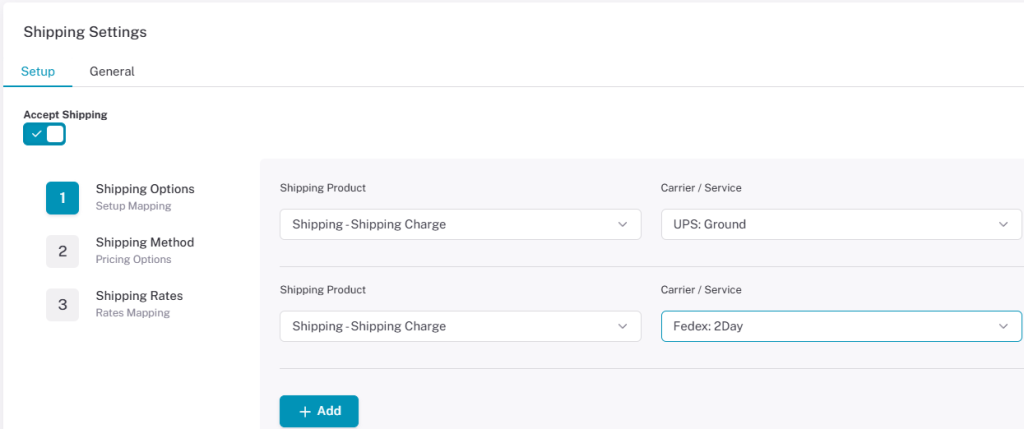
In Step 1, users map their shipping product to a carrier or service. Carriers/Services can be created in Fishbowl in the Setup module under “Carriers.”
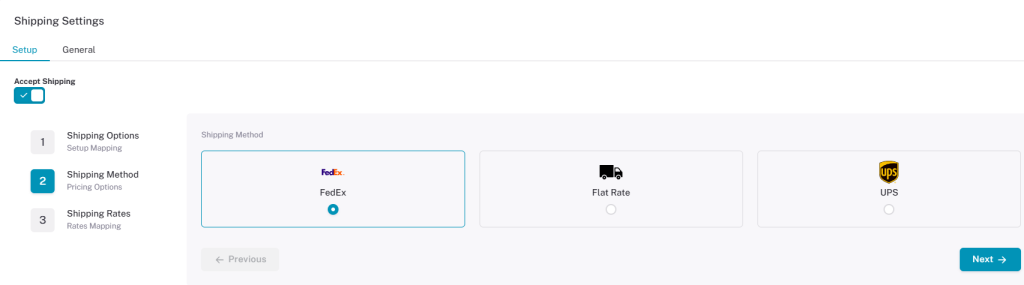
In Step 2, you choose who the products will be shipped through — FedEx, Flat Rate, or UPS. This affects what services are available in Step 3.
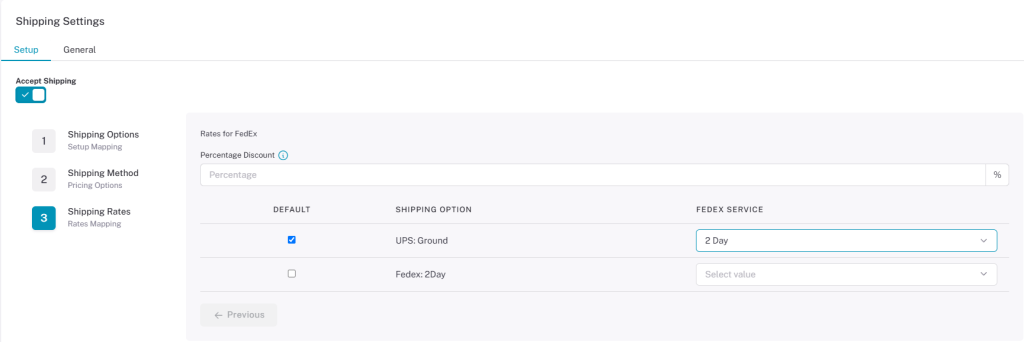
In Step 3, the shipping options carried over from Step 1 are mapped to shipping services. Users can select one of the shipping options to set as the default on the left side. Available shipping services change depending on the method (FedEx, UPS, or Flat Rate) selected in Step 2.
FedEx #
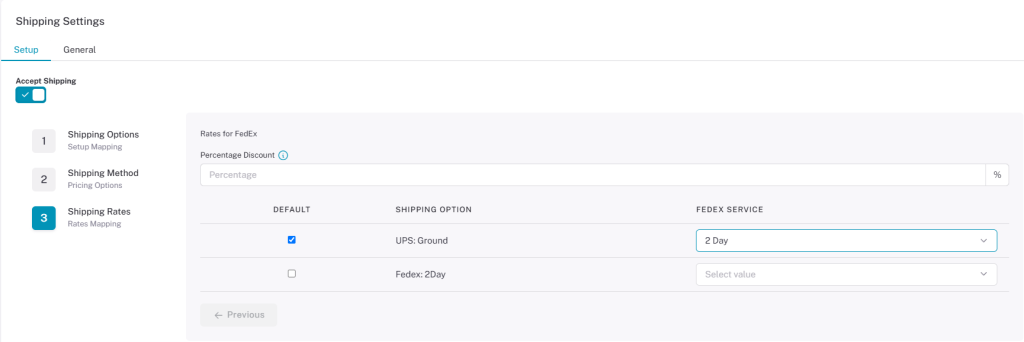
When FedEx is selected as the shipping method in Step 2, you have options to select FedEx shipping options and rates in Step 3.
Here you can set default shipping options and which type of FedEx service to use. Users can also take a percentage discount off the shipping rate cost by entering a number in the text box. (You can view the FedEx site for current shipping rates on the FedEx website.)
UPS #
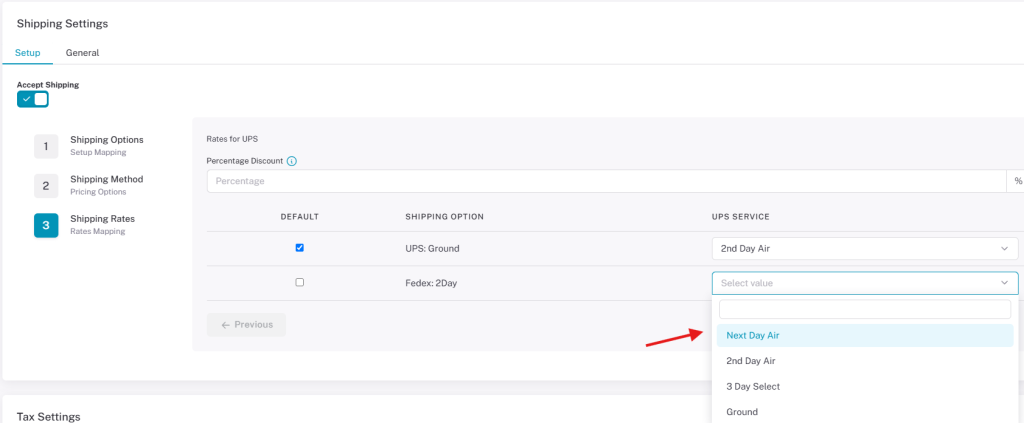
When UPS is selected as the shipping method in Step 2, UPS shipping rates are applied. You can choose which UPS service to use for the shipping options on the right, and apply percentage discounts to the UPS shipping rates. (You can view the UPS site for current shipping rates on the UPS website.)
Flat Rate #
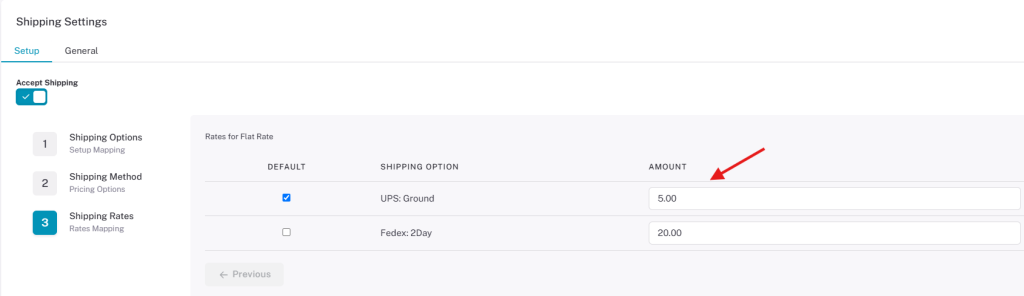
Flat Rate prices are determined by the user — enter any amount you want in the text box under Amount. There is no option to enter a percentage discount when Flat Rate is selected.
This page provides an overview of no‑verification online casinos available to Australian players and explains typical verification practices and their implications. It outlines common payment methods used at such sites and notes considerations around privacy and withdrawals. The content is aimed at readers who want a concise primer on how no‑verification options differ from standard licensed casinos.