Disclaimer: Not all features shown are available with the standard LilyPad Vortex package.
Creating a Sales Order #
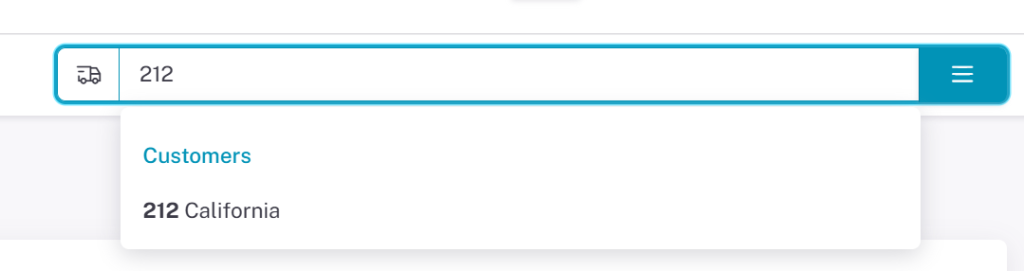
To create a Sales Order make sure you have a customer selected in the box on the right side of the screen. You will then see the shopping cart appear in the top right, meaning you are ready to build the order.
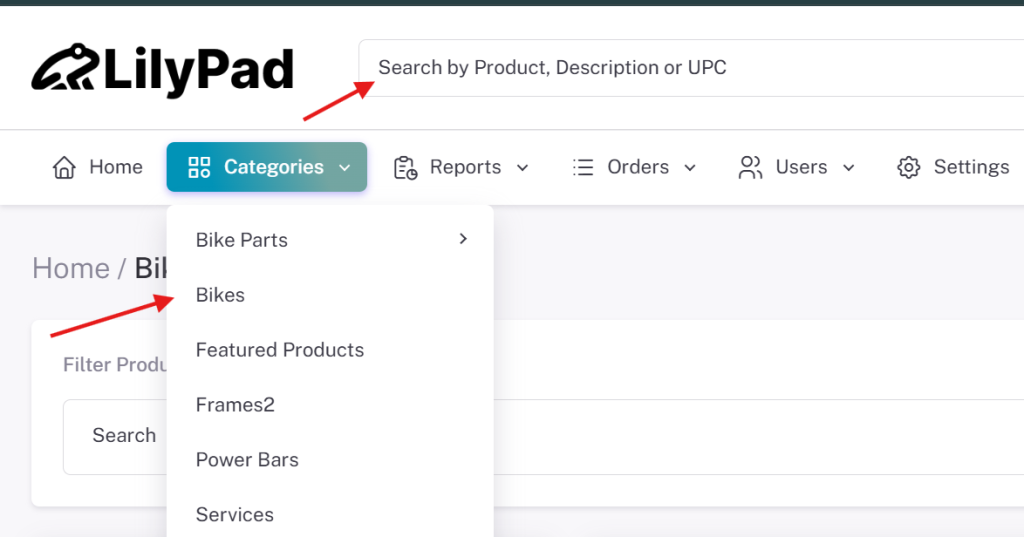
Users can add items to the cart by entering the product number, description, or UPC in any of the search bars around Lilypad.
Users can also browse through the “Categories” tab find products if they don’t know the name specifically.
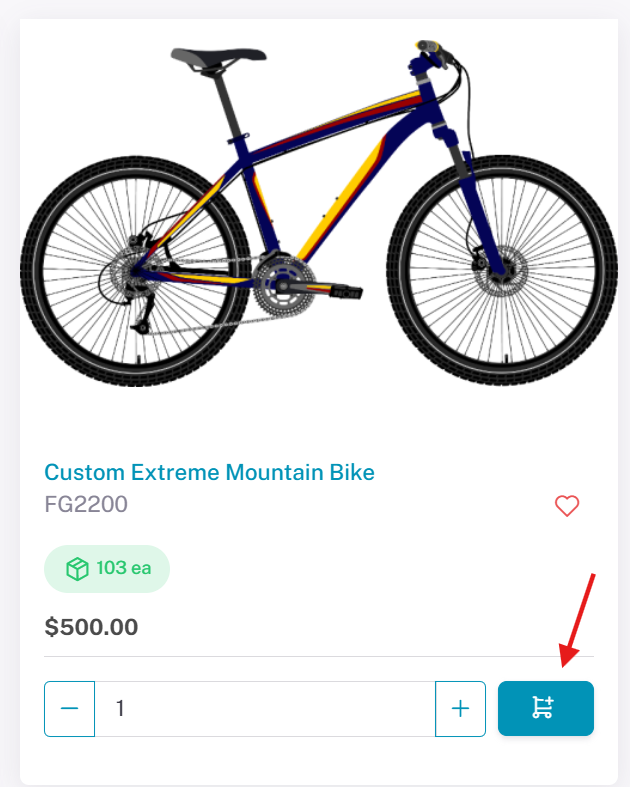
Once you have found the products you want, users can add them to the cart by clicking on the blue shopping cart button located on all products.
Users can also adjust the quantity they would like to place in the cart by using the box to to the left of the shopping cart icon.
When you have found all the products you want to order and placed them in the shopping cart, users can either review their products in the shopping cart or move directly to the.
If you choose to go to the shopping cart, there are a few options users will have here.
- Users can edit the quantity of the products they’ve placed in the cart. (Salespeople can also edit the price if allowed)
- Using the Actions drop down on the right side of the cart, users can add notes to the order and Salespeople can apply discounts
- Users can Save orders to place them at a later date if needed and also add Order Notes at the bottom right.
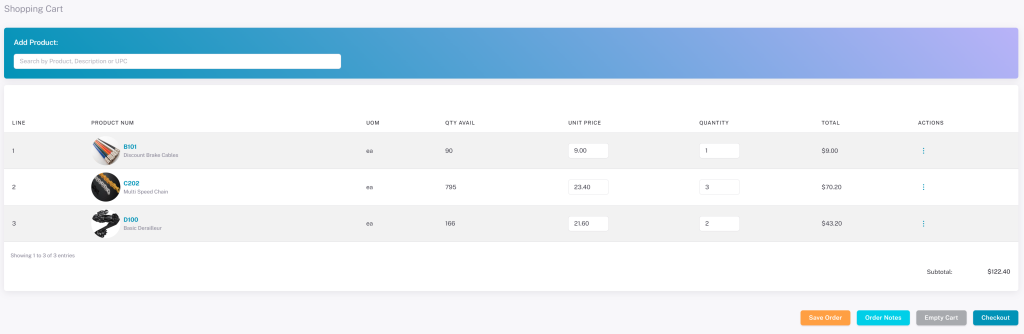
Once you have all the products you want in the cart, move to the checkout page by selecting the Checkout button in the bottom right of the shopping cart.
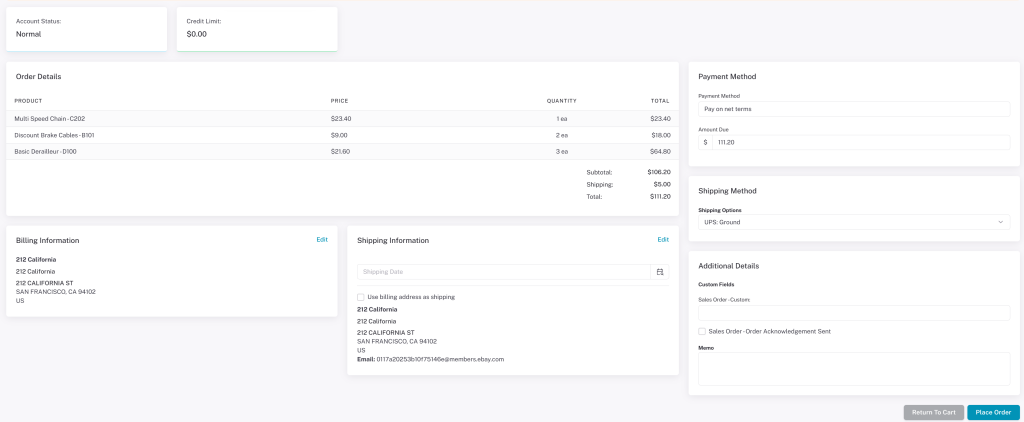
The checkout page lets the user select or change their shipping address, billing address, payment methods, and locations. Review your order and click Place Order to submit it.
Some settings under the Sales Orders and Customers settings affect what is displayed and what can be edited on the checkout page.
Adding Notes/Memo’s to Sales Orders #
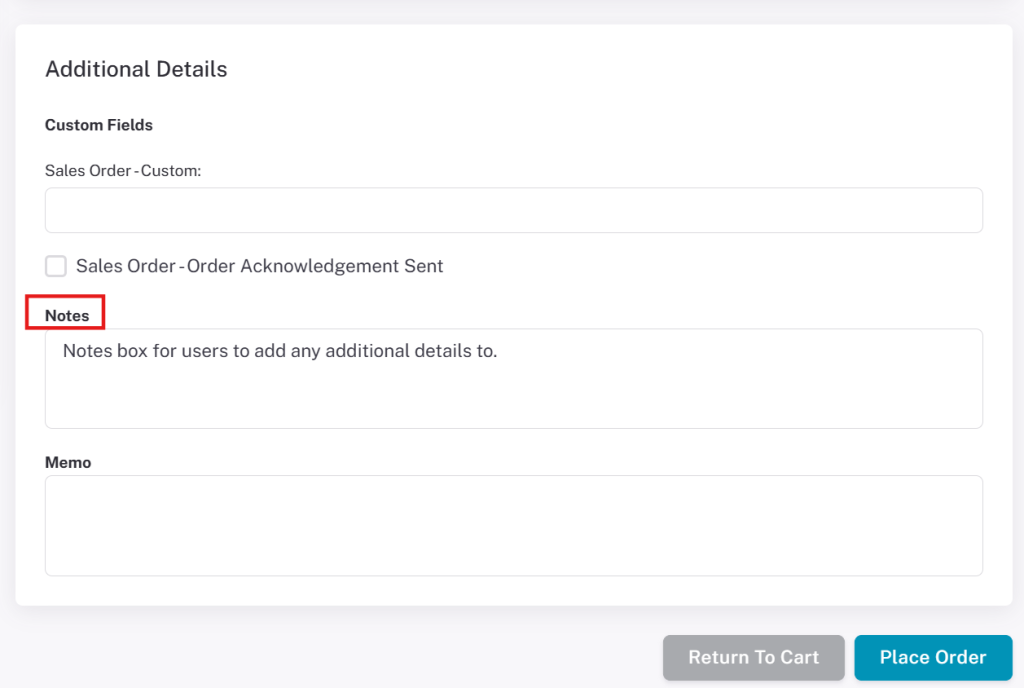
Notes can be added to orders when the “Order Notes on Cart Page” setting is turned on (found in the Sales Order settings). This setting takes the notes written on the shopping cart page and auto-populates the notes box on the checkout page.
Notes will be added to the order as it is sent to your database.
Memos can be created when the “Memo” setting in the Sales Order settings is on. When active, a text box appears on the checkout page where you can place any message to accompany the order.
When something is entered in the Memo text box in Vortex, it is visible in the Fishbowl sales order under “Memo.”
Unlike the “Notes” box, text entered in “Memo” does not appear on the sales order report — it only appears on the order in Fishbowl.