Disclaimer: Not all features shown are available with the standard LilyPad Vortex package.
Connection Details #
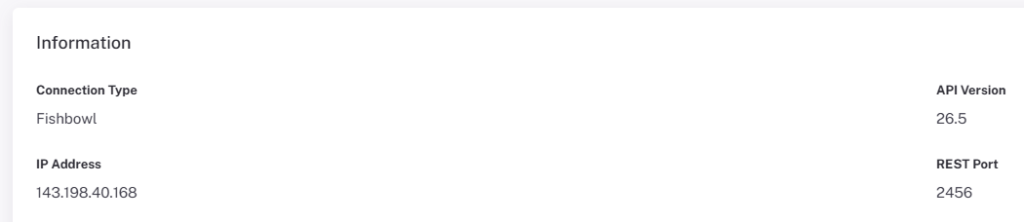
Connection Details is where you find information on the current connection information we are using for your LilyPad site.
Vortex Settings #
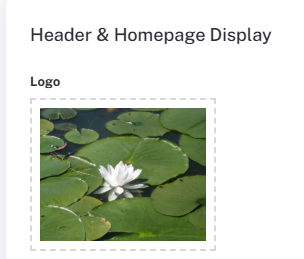
Company Logo — Upload an image of your company logo to replace the default LilyPad image.
The company logo is visible in the top left of Vortex, and on the login screen. It can be uploaded directly into Vortex from this setting.
Dynamic Header Display — When “ON,” the header stays in place. When “Off,” the header moves with the screen as you scroll. The header includes all
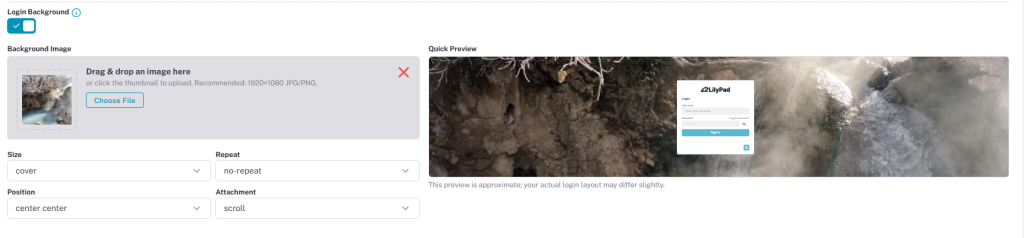
Login Background — Users can add a picture to alter the background of the LilyPad login page.
Home Page Display #
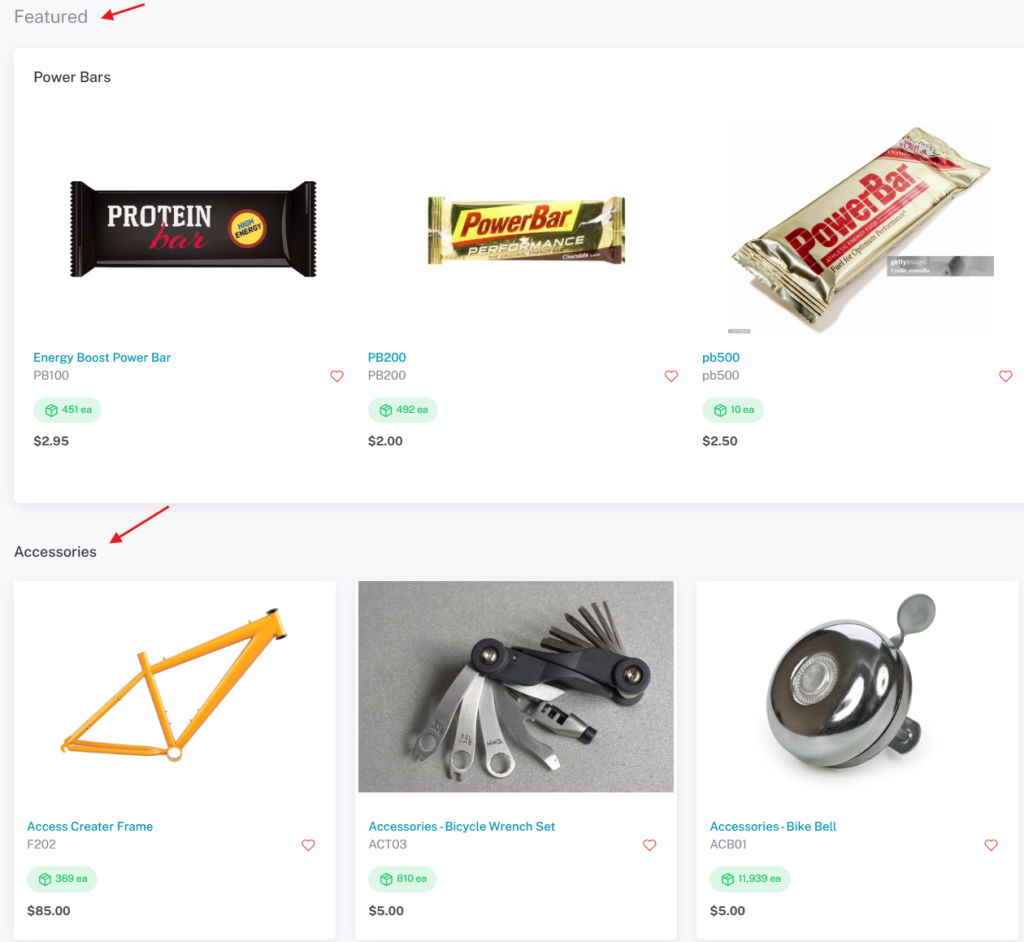
The Featured and Category settings use product trees from within Fishbowl.
- Featured (Customer/Salesperson) — Choose one of your categories to display at the very top of the Home Page.
- Category (Customer/Salesperson) — Choose another category to display on the Home Page, appearing under the Featured category.
- Show # Items (Customer/Salesperson) — Adjusts the number of items shown across all Vortex pages (does not affect the number of Featured items). The current number being shown appears at the bottom right corner of the page.
Batch Schedule #
This setting manages when orders get processed. Leave it off to process orders instantly, or turn it on to have all orders processed at a certain time.
Forgot Password Email #
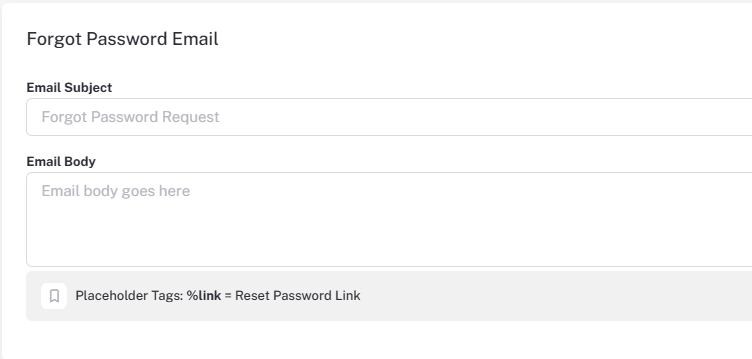
Users can edit the subject and body of the forgot password email that is sent from the LilyPad login page.
Site Cache #
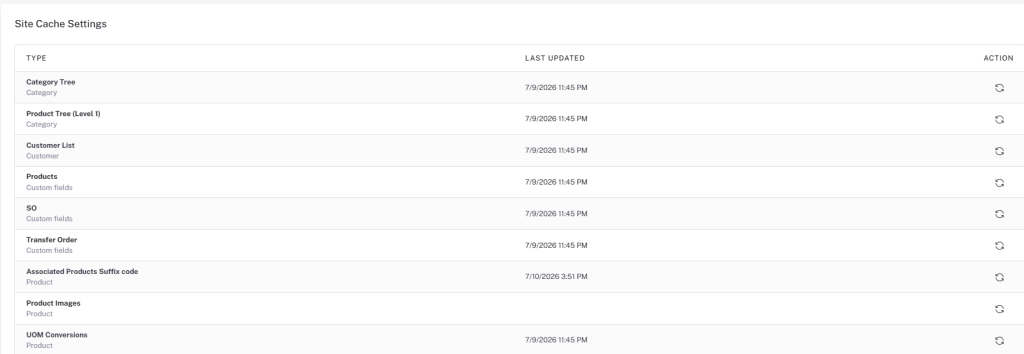
This is where you can check the last time information was synced from Fishbowl. Use “Clear All” at the bottom of the page to sync all options at once (except product images).
Product Images — Product images must be synced separately from all other syncs. “Clear All” does not work on product images, as it would be too much to download every time. Product images are taken from Fishbowl.