Disclaimer: Not all features shown are available with the standard LilyPad Vortex package.
Salesperson Accounts #
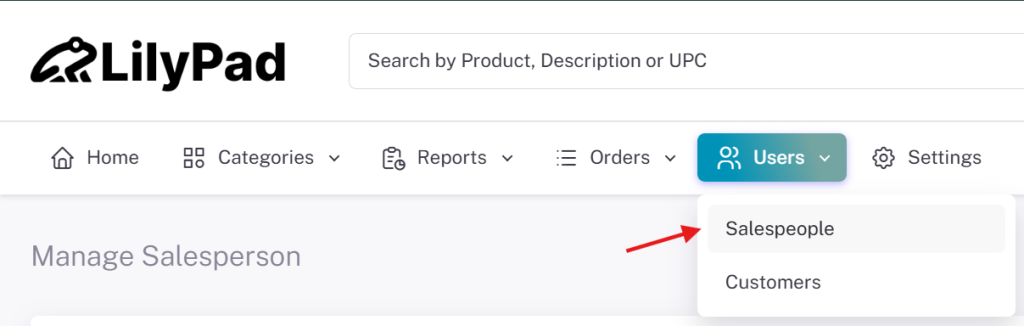
We will go over the settings for setting up a salesperson account on LilyPad here. To start setting up a Salesperson account, navigate to the Users drop down and select Salesperson.
Salesperson Account Settings #
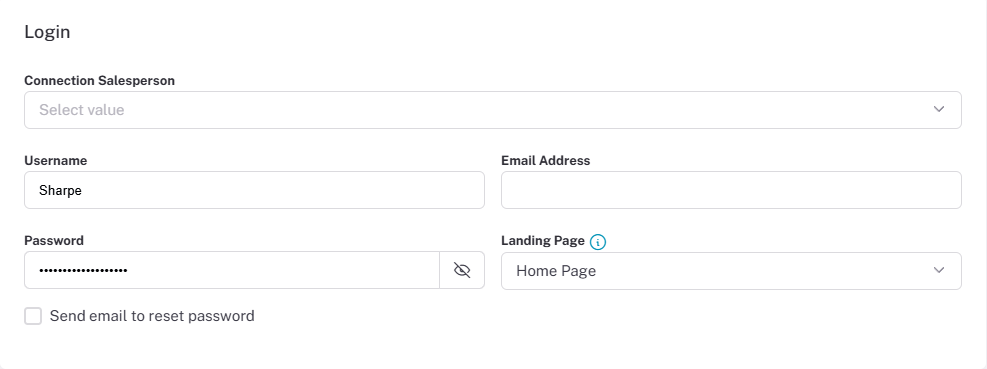
- Connection Salesperson — This is where you will select which Salesperson/User will be assigned to this Lilypad account. The salespeople/users to choose from are pulled from your database. Required field.
- Username — The salesperson’s account username. Required field.
- Password — The password for the new salesperson account. Required field.
- Email Address — The email of the new salesperson account. Required field.
- Landing Page — Sets the page the salesperson sees when logging into Vortex. Options include the Home Page, Submitted Orders, Categories, and more.
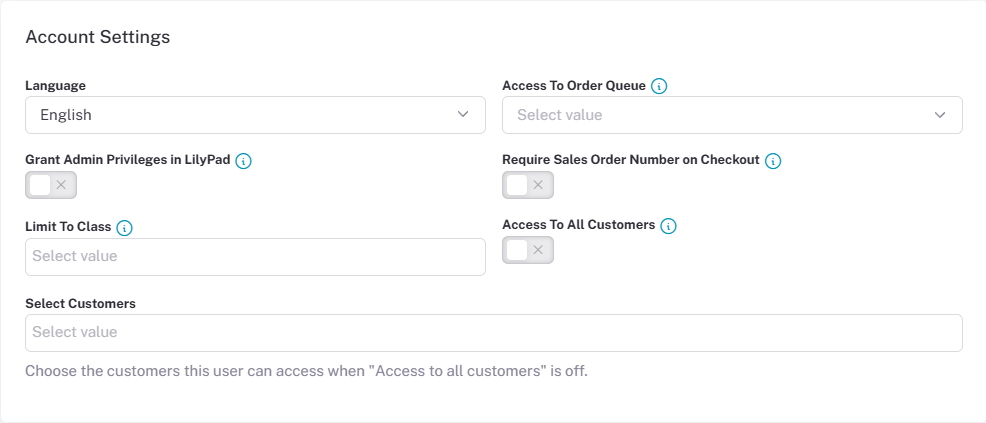
- Language — Sets the site language for specific salespeople.
- Access To Order Queue — Gives the salesperson visibility to the order placed through Lilypad. Options include no access, only their own orders, or all orders in the queue.
- Grant Admin Privileges in LilyPad — Gives the salesperson the same privileges as the admin in LilyPad Vortex.
- Require Sales Order Number on checkout — This will require all salespeople to enter their own Sales Order number before they fully submit the order through Lilypad.
- Limit To Class — Limits a user’s access to only customers assigned to their specific class. Classes are specified within the users database and used if your database is linked with QuickBooks.
- Access To All Customers — Lets the salesperson see all orders and information for all customers.
- Select Customers — If the Salesperson account does not have “Access to All Customers” selected, you are able to choose which customers this salesperson account can place orders for.
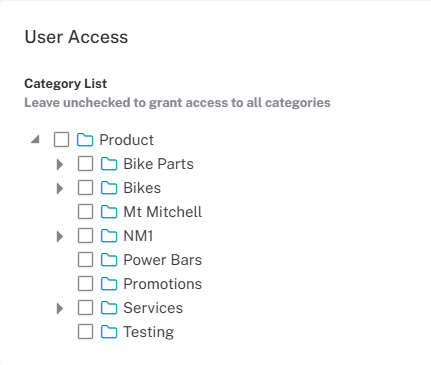
- Category List — Limits which products the salesperson has access to. If all options are left unchecked, they have access to all products; checking at least one box restricts access to all others. The Categories shown on the list are pulled from your database.
Customer Account Settings #
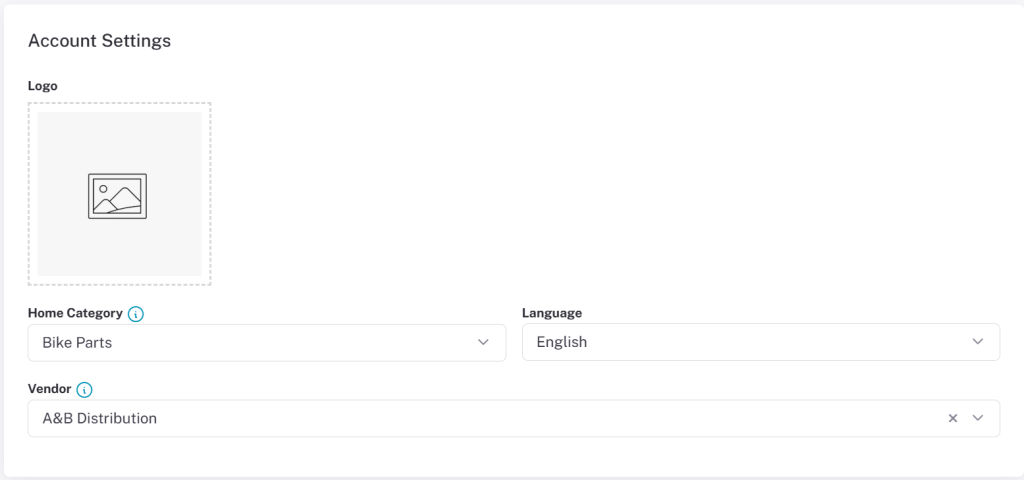
- Logo — You can add the customers logo so when they login to LilyPad they will see their own company logo besides yours.
- Home Category — Users can set a specific product tree to be displayed on the home page for this user. This will make the home page display a distinct product tree they have access too and would only apply to this user specifically.
- Language — Sets the base language the site is in when this user logs in to LilyPad.
- Vendor — This will choose a vendor to assign to Purchase orders placed by this customer login.
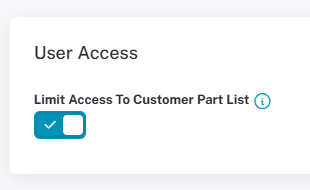
- Limit Access to Customer Part List — This setting will make it so parts assigned to your customer in your database will be displayed to them on LilyPad. This will not use product trees anymore will only allow the customer to see assigned parts.