Disclaimer: Not all features shown are available with the standard LilyPad Vortex package.
Display- Add Customer Form #
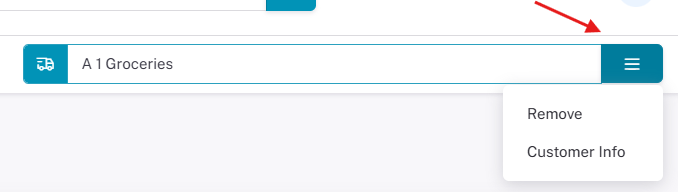
- Hide Customer Account Number Field — Hides the customer account number. The account number is found in the blue box next to the customer name in the header.
The account number is normally also shown in the checkout page.
Display- Customer Details #
- Hide Existing Address — Requires the customer to enter a new address at checkout. Removes any additional address options on the checkout page.
The default shipping address (pulled from your database) will be used for the customer.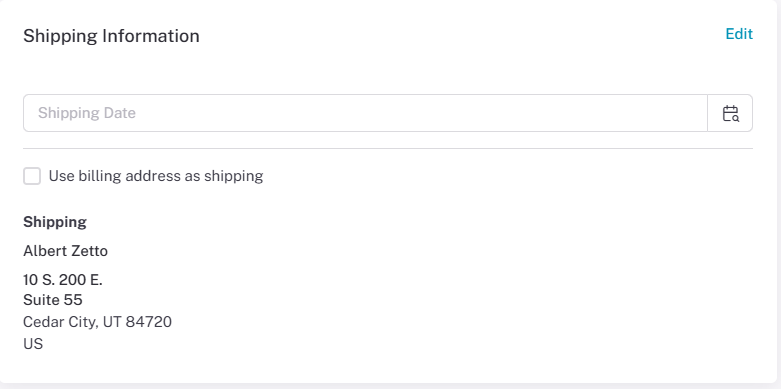
Hide Pricing — Customers cannot see product prices anywhere in Vortex (product tiles, shopping cart, or checkout).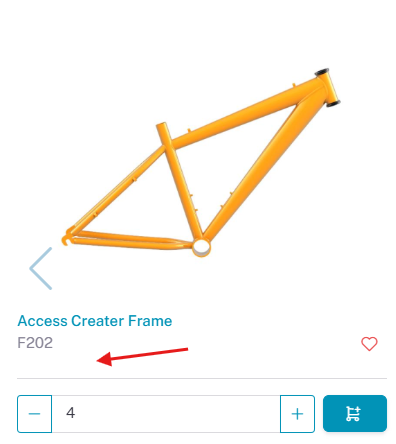
Hide Credit Limit — Customers cannot see their credit limit, normally viewable at the top of the checkout screen.
Credit Limits are set directly on your database under the customer details.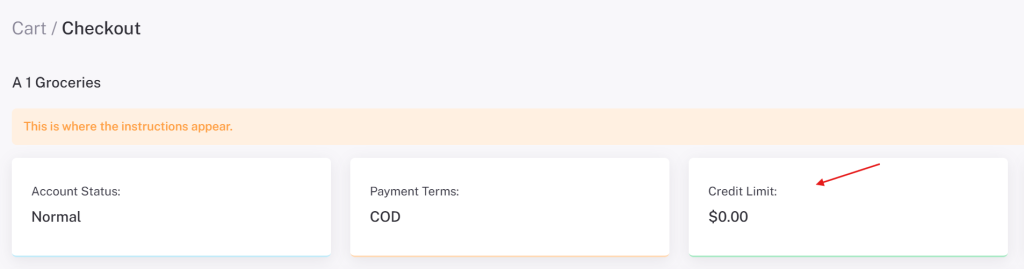
Hide Inventory — This setting will allow users to hide inventory values from customers on all screens in LilyPad.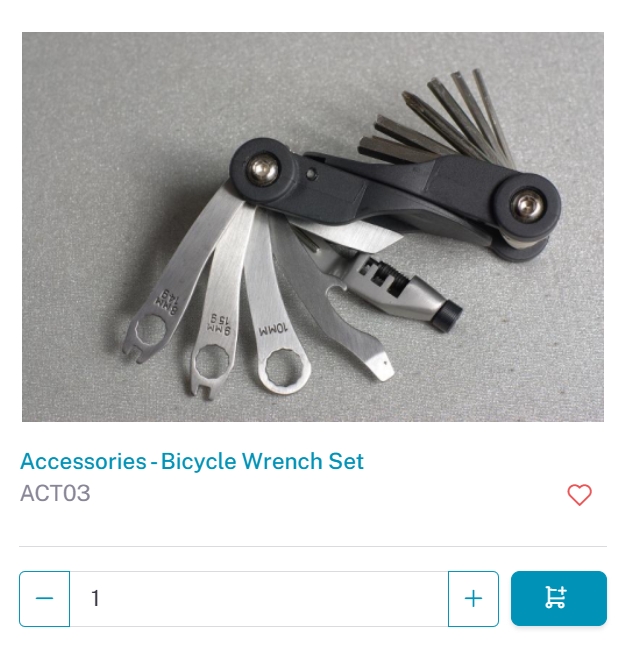
Turn Off Inventory — This setting will disable inventory data for all customer users on Lilypad.
General- Add Customer Form #
- Check Same as Main for Bill To / Ship To — These two settings allow users to have the Bill To and Ship To addresses both use the “Main” address used in your database.
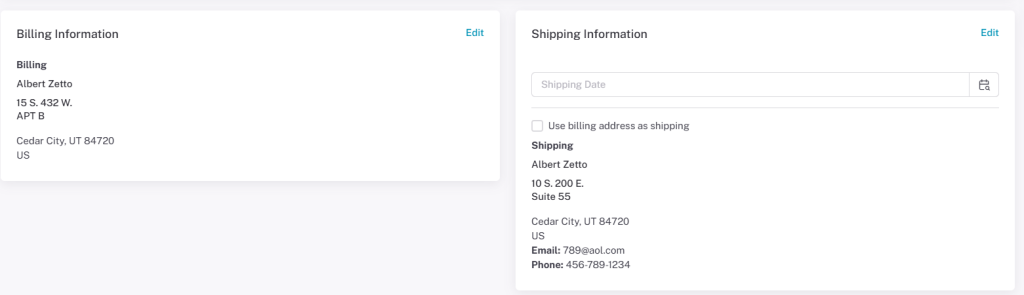
- Disable Unique Email Addresses — This setting allows customer accounts on Lilypad to have the same email address.
Usually, Customer accounts on LilyPad must have different email addresses. This setting overrides that requirement.

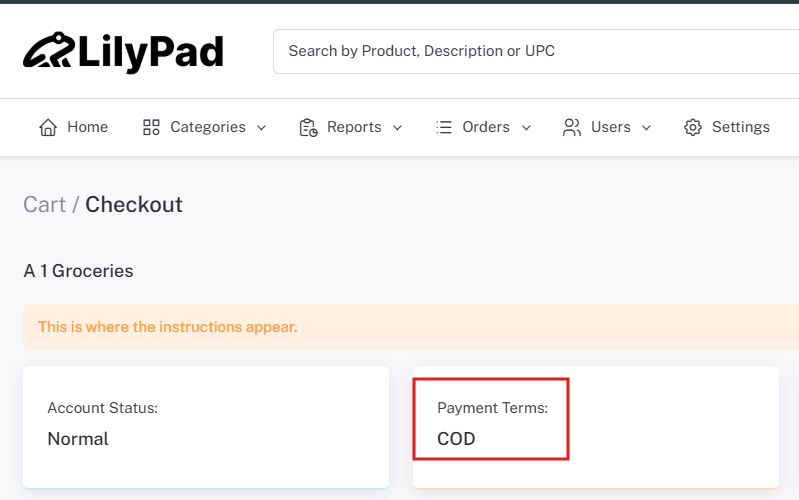
- Payment Terms — Lets the user set payment terms for customers. This will apply payment terms to customers that don’t have any assigned to them.
Payment terms can be viewed on the checkout page.
- Customer Group — Lets the user set all customers to a specific customer group.
Customer Groups are used within your database.
General- Customer Access #
- No New Billing / Shipping Address Addresses — Prevents customers from creating a new address at checkout; they can only choose an existing one.
This will make it so, when the “edit” button is selected for the addresses on the checkout page, that page will be grayed out and will not be modifiable. 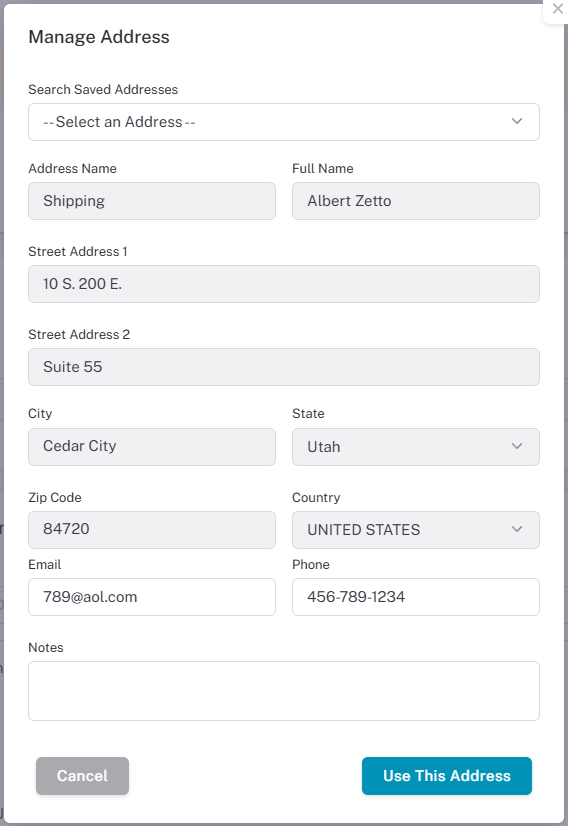
Security #
- Enable 2-Factor Authentication — Customers will get a 2 factor authentication email when attempting to login to their LilyPad account.
This email will be sent to the email address entered on the customers account.