Disclaimer: Not all features shown are available with the standard LilyPad Vortex package.
Entering Custom Field Information for a Product #
Custom Fields can be used in a variety of ways to either display new information for your products, links to external sites or videos, and creating min-max purchasing rules.
To enter custom field information for a product, go to the Materials module in your database and select “Product.”
Click the product you want and go to the “Custom” section. Enter the link into one of the custom fields you have created for the Product module.
In Vortex, go to the Products settings and select the custom field you just entered the information into. Type in the Link Text (what the hyperlink will appear as) that will show up on the product information screen.
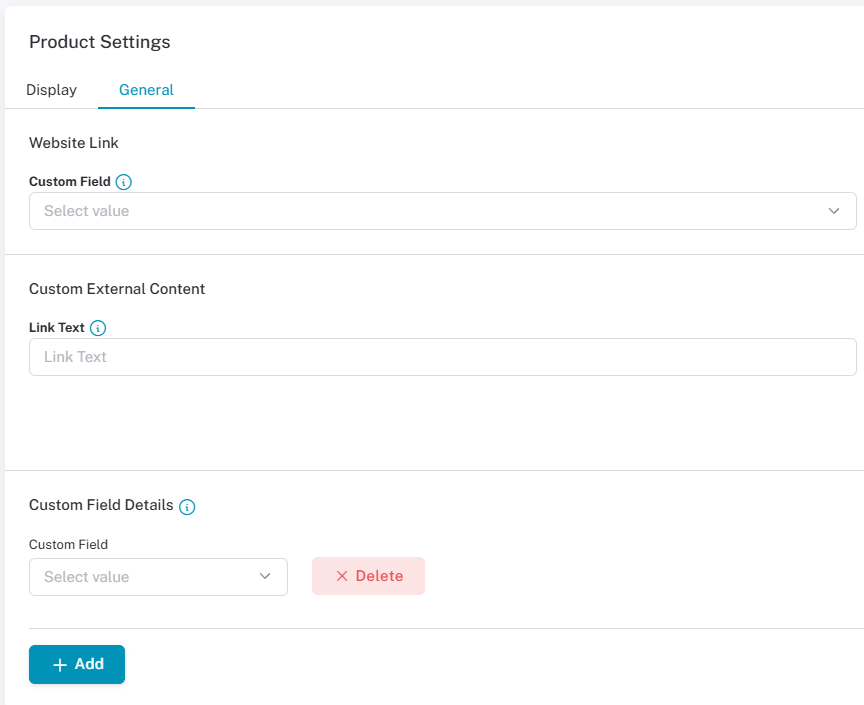
Note: Go to the Site Cache to sync custom fields into Vortex after creating them in Fishbowl.
Adding Images to Products #
To get product images onto the LilyPad Vortex site, please navigate to the products in your database. You will want to add the product image directly into your database first and then import those images to LilyPad.
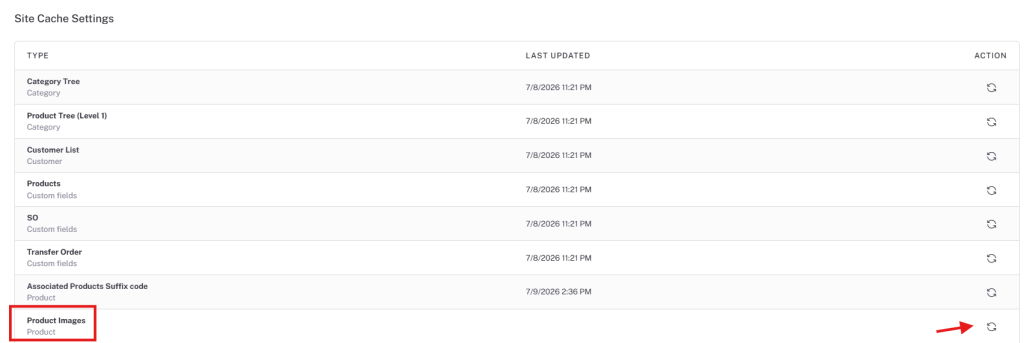
To import the images go to the Site Cache in the LilyPad settings. You will see a line called “Product Images”.
Use the circular arrows on the right hand side to start the image sync.
Pricing Rules #
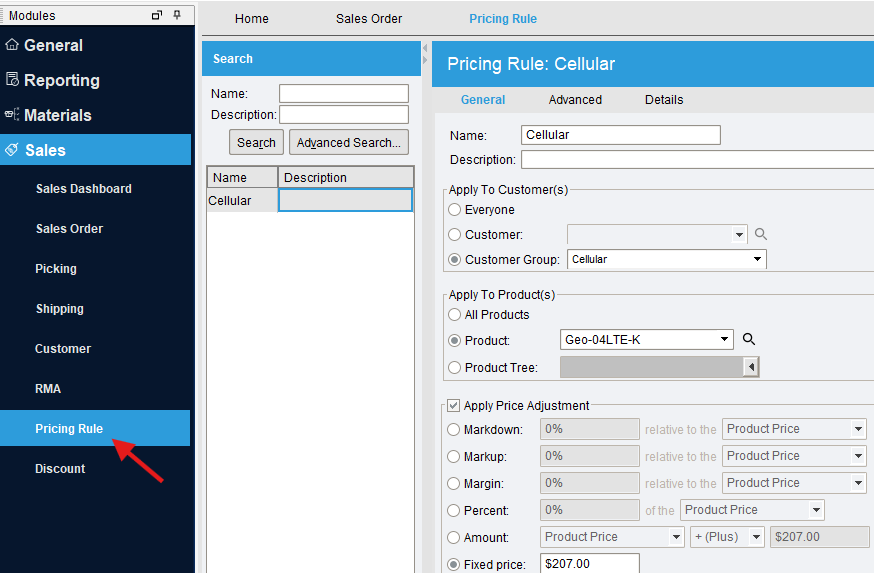
LilyPad Vortex can utilize any specific pricing you have assigned to your customers or products. To setup pricing rules, navigate to your database to create them. Once created, LilyPad will import those pricing rules and assign them to any applicable customers or porducts.
For example, if you are using LilyPad Vortex with Fishbowl, you can go to the sales module and create a new pricing rule there.