Disclaimer: Not all features shown are available with the standard LilyPad Vortex package.
Changing Category Images #
Categories are the same as Product Trees in your database. Sub-Category images can be changed directly in LilyPad Vortex.
Navigate to the “Products & Categories” settings and open the Product Category Image setting. Click the category you want to add an image to, then click Upload Image.
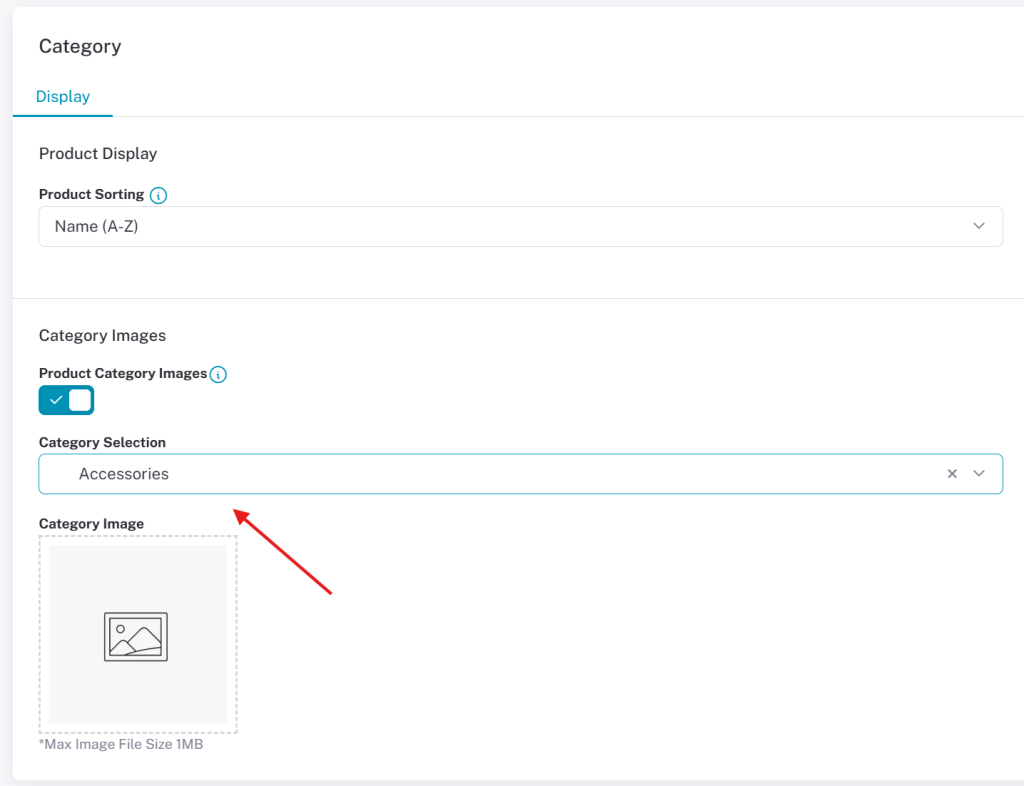
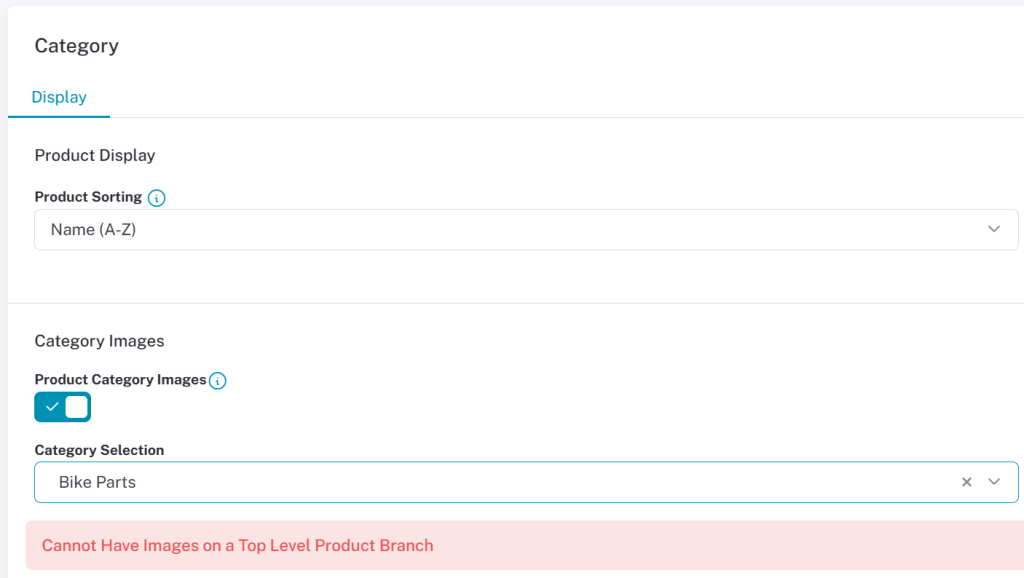
Images can only be uploaded for sub-categories / sub-level product branches. An error message is displayed when you try to add an image to a top-level product tree alerting you that that is not a valid category.
Product Trees #
Product trees can be setup in your database and are found where your products are. These product trees and sub-trees are directly reflected in Vortex as Categories and Sub-categories.
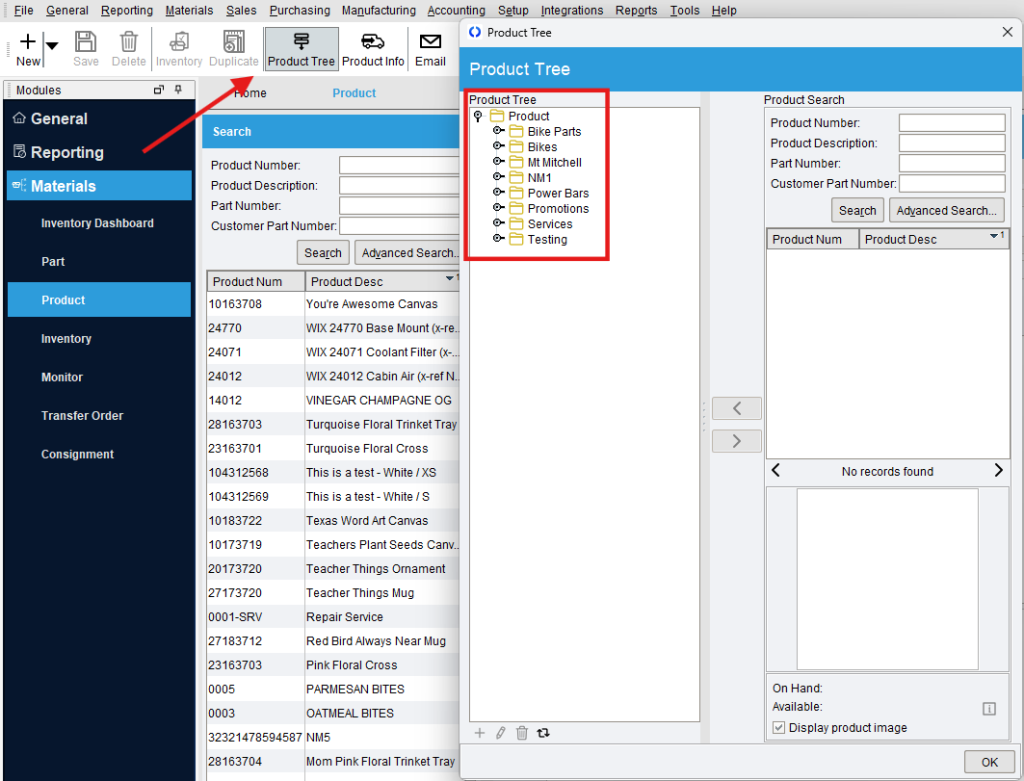
For example, in Fishbowl, to create a new product tree, click the “Product Tree” button at the top, then click the “+” at the bottom left of the pop-up.
To add items to an existing product tree, click the folder icon of the tree you want, search for products on the right, and add them to the tree using the arrows in the middle.
Note: Go to the Site Cache to sync product trees into Vortex after creating them in Fishbowl.
The site covers topics such as PayID deposits and withdrawals and typical processing considerations. It may help readers who want a straightforward reference to compare payment options and learn which methods often provide faster settlements. The information can be useful for players looking to understand practical aspects of secure online casino transactions in Australia.