Disclaimer: Not all features shown are available with the standard LilyPad Vortex package.
- Show Next Receive Date — This setting will show the next receive date for inventory on products that are currently out of stock. The Receive date will only appear if the inventory is on a purchase order waiting to be completed.
- Min QTY — Sets a minimum quantity for products based on the custom field. The quantity auto-adjusts, and a pop-up appears when going below the set quantity.
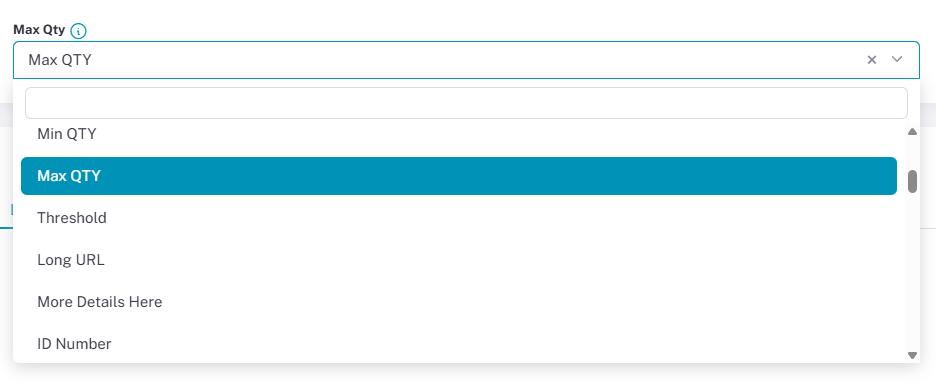
- Max QTY — Sets a maximum quantity that can be ordered for a specific product based on the custom field put in this setting.
- Pricing Rule Min Qty — Displays a pop-up when an item has a minimum-quantity discount active. The discount applies once the item reaches the set threshold.
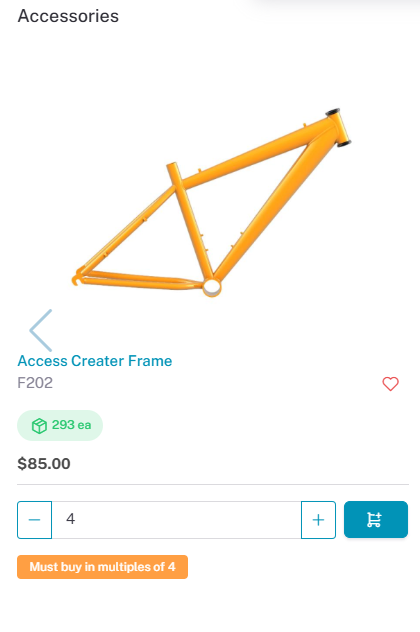
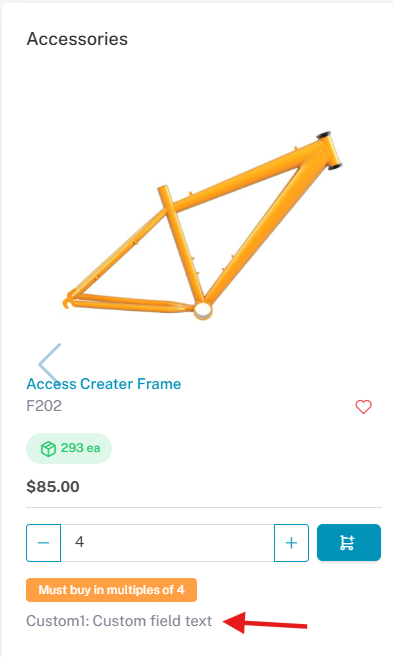
- Multiples from Min Qty — This setting allows products to only be ordered in multiples of the set minimum quantity. (E.g., if min QTY is 10, items can only be purchased in multiples of 10 — not 12 or 23, but 20, 30, etc.) A description of how much has to be purchased appears on product tiles. If a non-multiple amount is entered, a pop-up appears and the amount auto-adjusts to the nearest multiple.
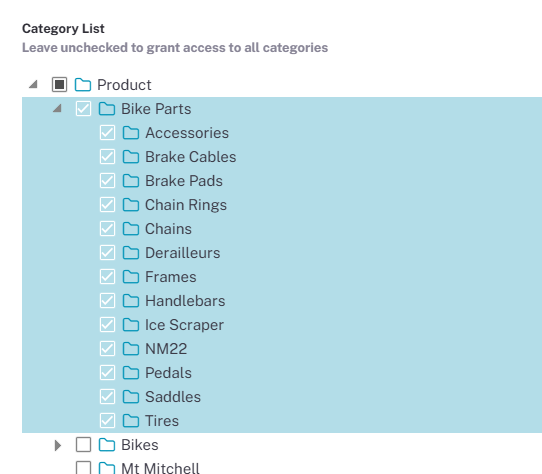
- Force Parent Rules on Product Trees — When selecting product trees, normally, users would have to select each product tree they want active on an account one by one.
This setting allows users to select one top-level product tree and then have all sub-product trees under it selected at the same time. Product Trees can be enabled in the users account on Lilypad.
- Custom Field Label — Displays text from a custom field on a product page and product tile.
- Enable alternative Products — This setting allows for alternative products to be displayed for products on Lilypad.
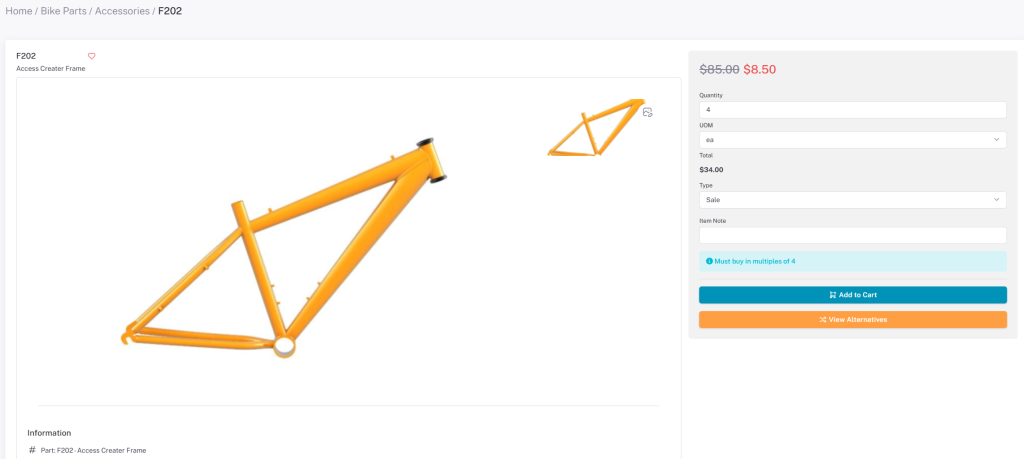
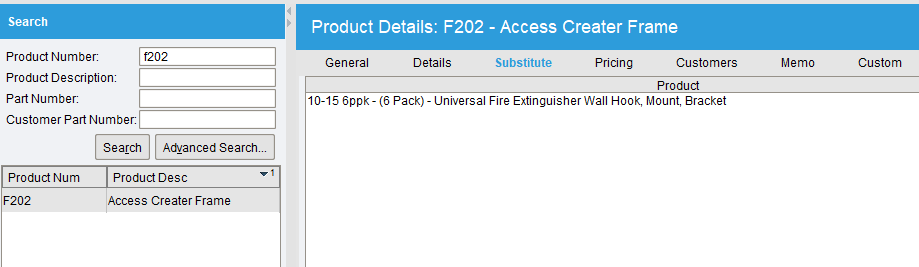
Alternative Products refer to “Substitutes” within your database. These substitute products can be switched out for the original product and ordered in their place.
Custom External Content #
- Custom Field (Website Link) — Users can enter a link to a custom field in their database. This custom field information will serve as a URL to appear on the products within Lilypad
- Link Text — Whatever is entered in this setting servers as the text for the link that will appear on Lilypad.
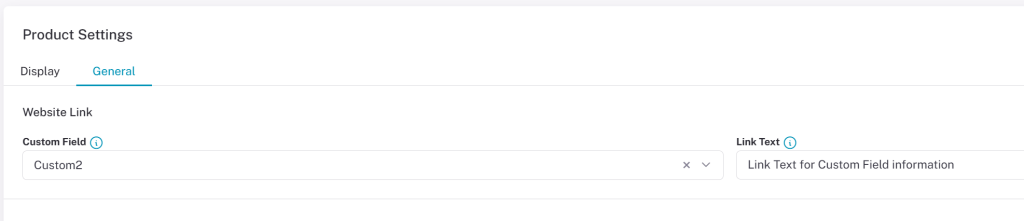
- Link Text (Custom External Content) — The Text entered in this box will appear as the URL for the Custom External Content that is entered in the setting below. That link will send users to an outside website once its selected.
- Custom External URL — This setting is directly tied to the Link Text setting above. Users can add a website address to direct others to an outside site to show videos or any other information on the given product.

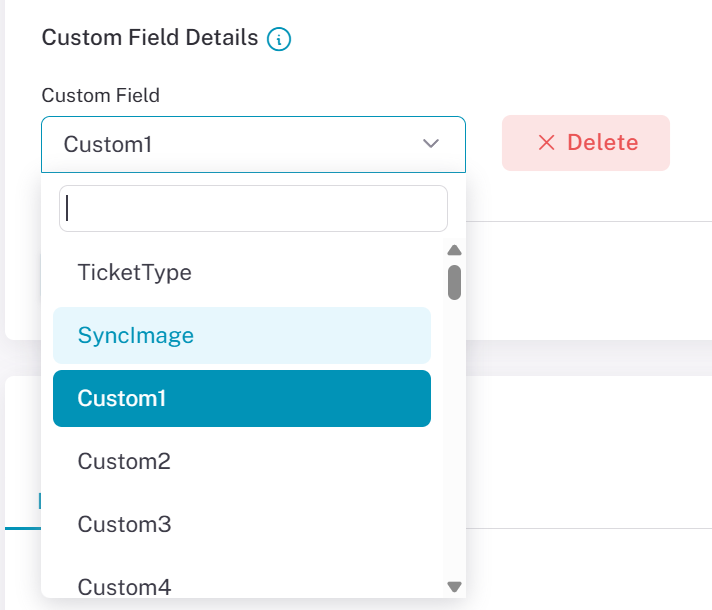
- Custom Field Details — Users can add additional custom fields to the product details page on Lilypad. You can add multiple custom fields form this setting.