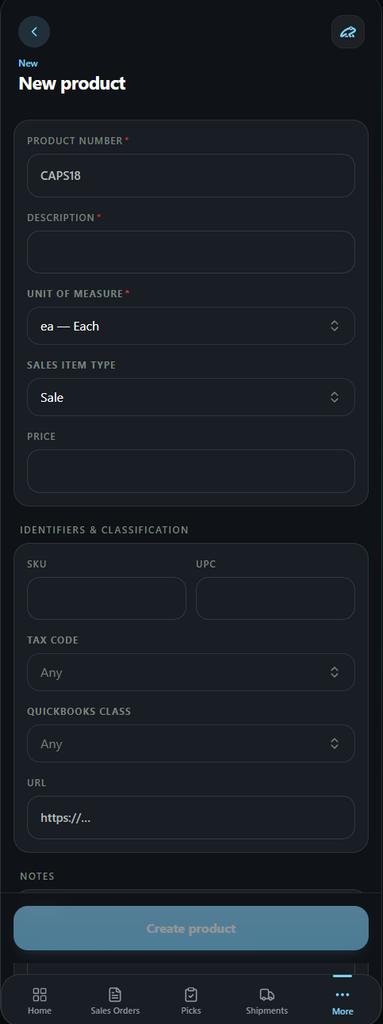
The product module on LilyPad is where users can go to view and create new products on your database.
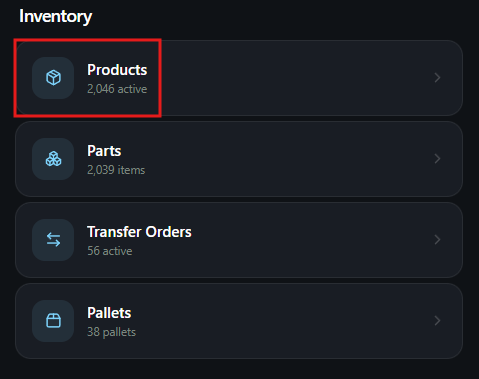
Users can get to the Products module by navigating to the Inventory section.
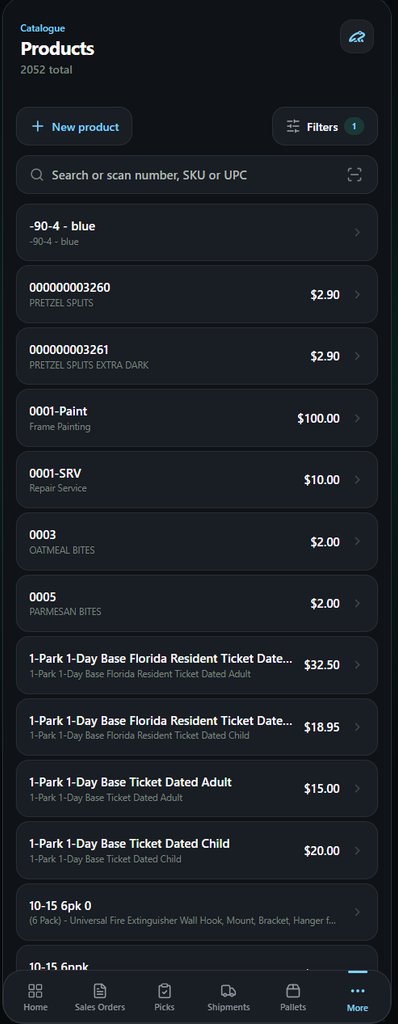
The product page will show users a list of products they can select. Users have the option to create new products or select products from the list.
Users can also scan a product barcode or search by product number, SKU, or UPC to pull up the product information.
- There are also Filters for users to use when searching for products. These include product status, UPC, SKU and description.
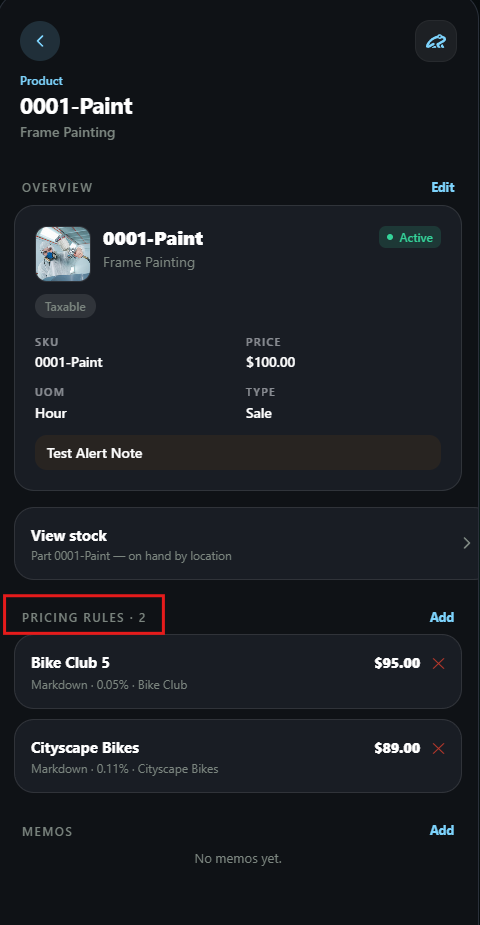
When users select a product they will move to the product information page. Here, all the current information about the product will be displayed.
This information is taken directly from your database and displayed for the users.
- From this page users can also see pricing rules being applied to the product and can view inventory levels for the associated part
Creating a New Product #
When creating a new product, users can select the “new” button at the top left of the product page.
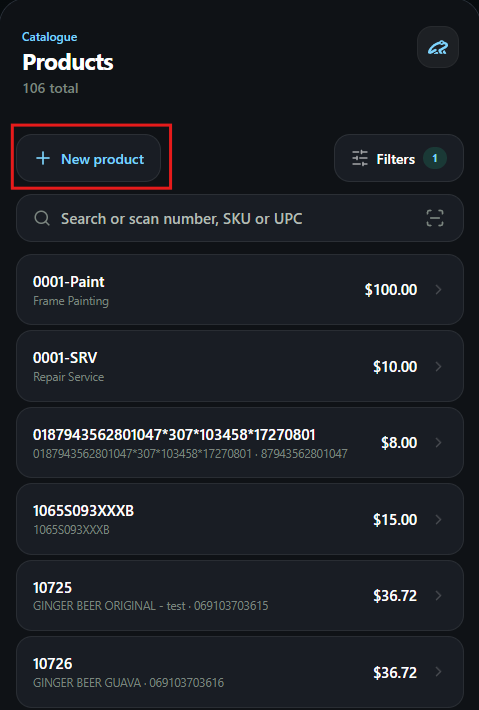
After selecting the new button, users can then begin creating the new product.
The new product page will ask users to enter in whatever applicable data they have for this product. There are only 3 required fields to create the new product: Product number, Description, and Unit of Measure.
When users are done they can select the blue “Create Product” button at the bottom of their screen.
This created product will carry over to your database and exist there as well.