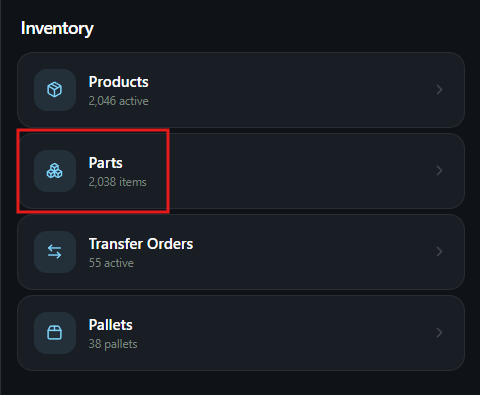
The Parts module on LilyPad Warehouse Management is where users will go to search for existing parts or add new ones directly into your database.
- The parts module is located under the Inventory group on the LilyPad home screen
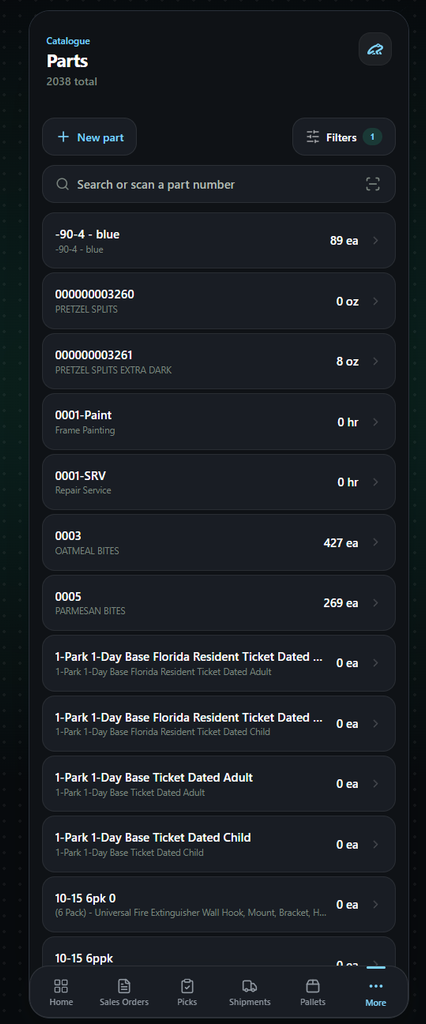
When users click into the parts module they will go to the parts main page.
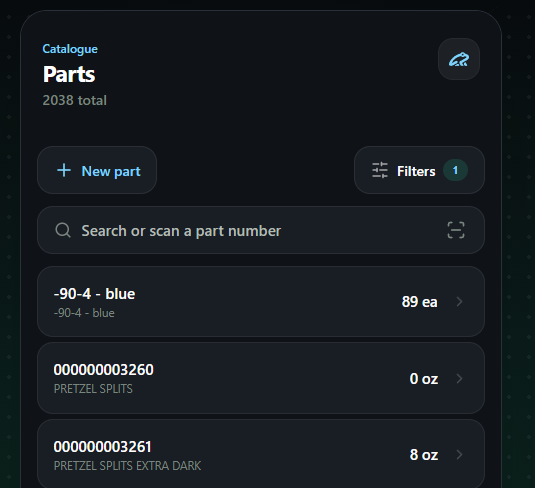
From this page users can view current parts from the list or by scanning bar codes and also add new parts.
Adding Parts #
To begin adding a new part, users can click on the New Part button.
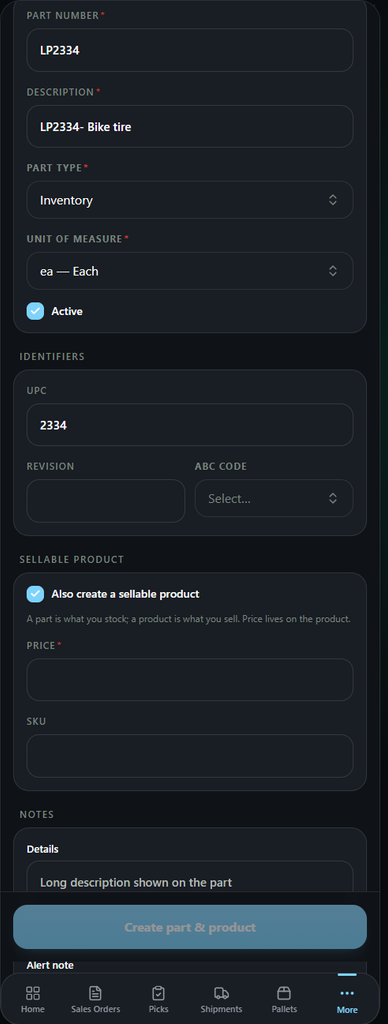
Users will then be brought to the part creation page. This page will allow users to enter in the necessary part information just like if they were creating it directly on your database.
Users will see 4 sections on this page to enter in the part information.
- Part number – Users can enter in the part number, UOM, and description for the part here.
- Identifiers – This section is for UPC codes, revision numbers, and ABC codes if needed.
- Sellable Product – While creating the part, users can also choose to make an associated product as well. This will ask users to enter in a product price and SKU for the product.
- Notes – Users can enter in any additional details of the part here. This would include long descriptions that did not fit in the first description text box and alert notes.
Viewing Parts #
Users can choose any part from the list by either typing the part number or scanning a part bar code.
Once a part is selected or created, they will be moved to the part information page.
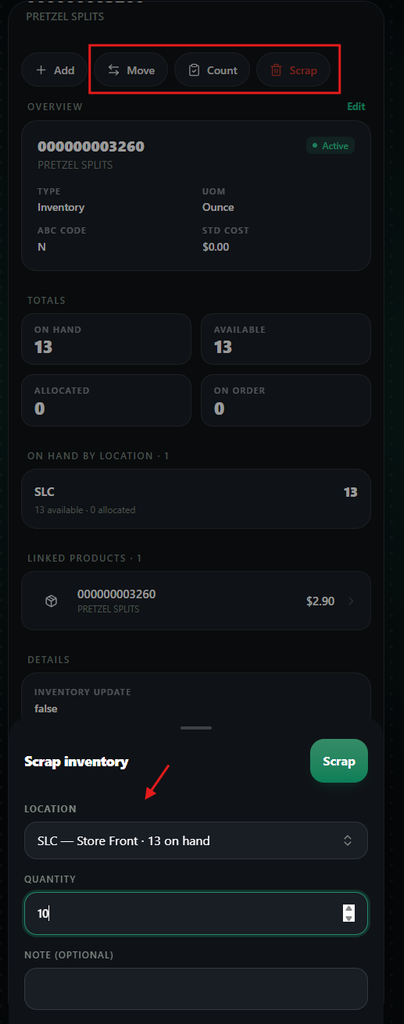
From this page users can view all details of the part like current inventory levels, details, and linked products.
Users can also add, move, or scrap inventory for parts by using the .
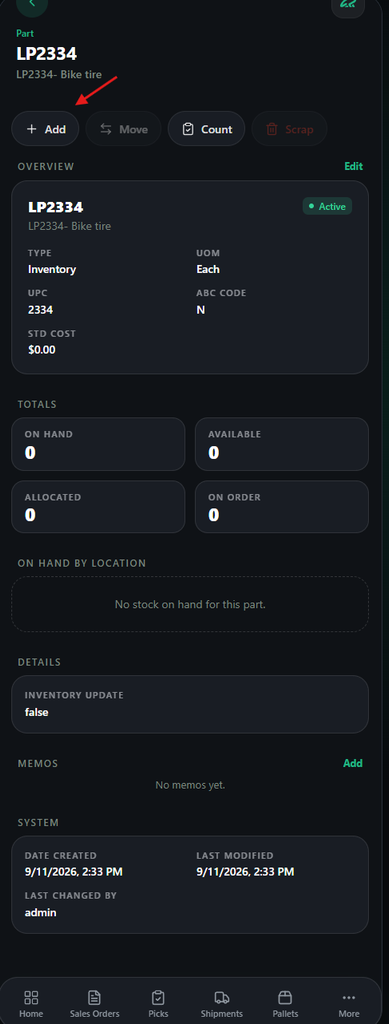
To add new inventory users can select the +Add button at the top left.
This will make a pop-up appear which will allow users to choose the quantity and location for the new inventory.
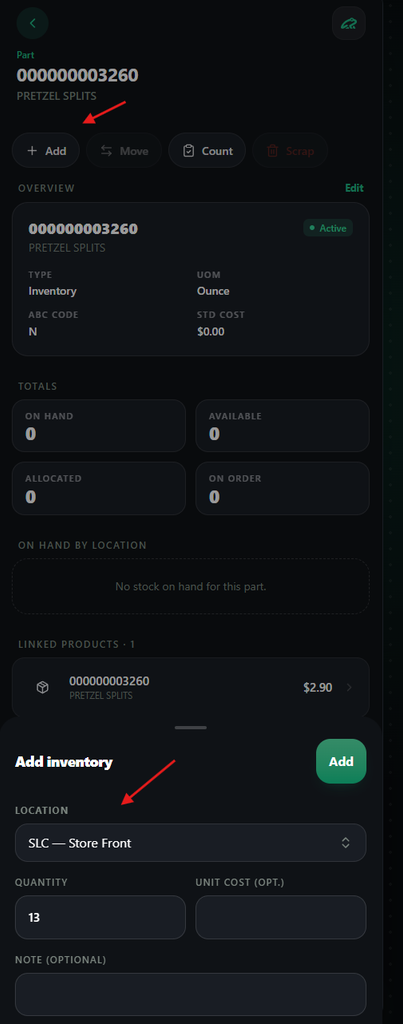
Users can also choose to move, cycle, and scrap the inventory to a new location by selecting the Move and Scrap button at the top of the screen.
These will open pop-ups and allow the user to choose locations and quantities they wish to move, cycle, and scrap.