Disclaimer: Not all features shown are available with the standard LilyPad Vortex package.
Display #
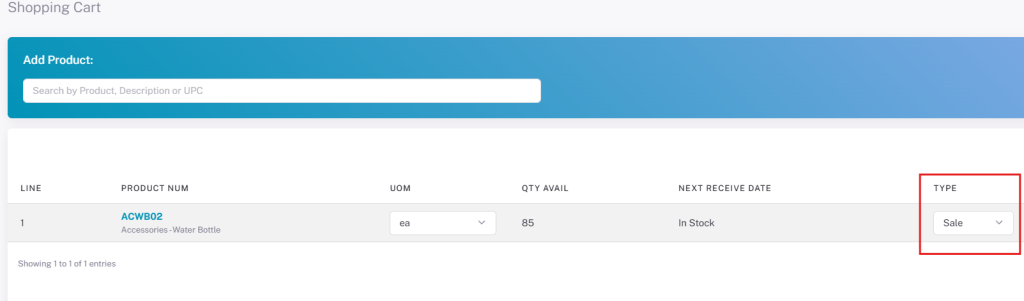
- Hide Item Type — Items added to the cart always default to “Sale.” The other two options (Credit Return and Dropship) will be hidden.
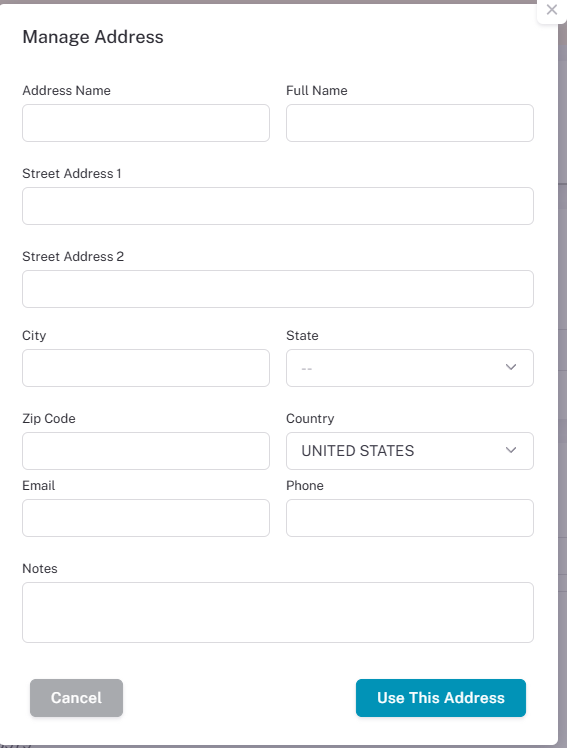
- Hide Existing Address — Requires the user to add a new Shipping address at checkout; the existing address drop-down is no longer viewable.
Users can click the “Edit” button on the Shipping Address box to add
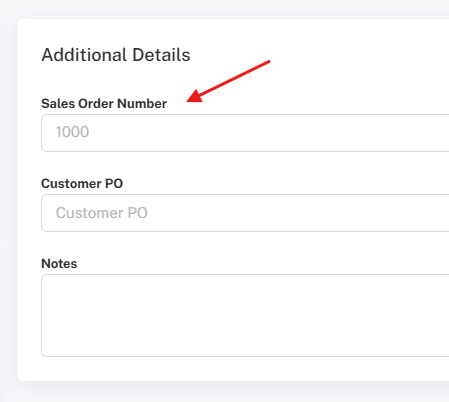
- Enable Custom Sales Order Input — This setting will require users to enter in a Sales Order number on the checkout page.
This can be found in the additional details box on the right side of the checkout page.
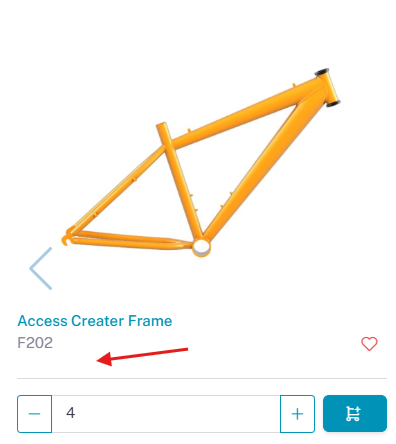
- Hide Pricing — Users cannot see product prices anywhere in Vortex (product tiles, shopping cart, or checkout).
- Hide Inventory — This setting will allow users to hide inventory values from customers on all screens in LilyPad.
- Turn off Inventory — This setting will disable inventory data for all customer users on Lilypad.
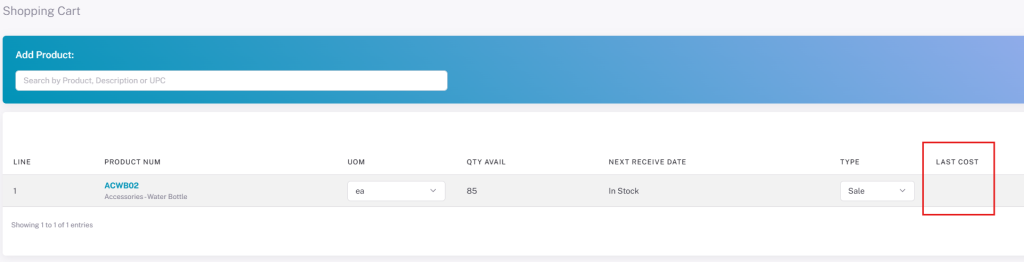
- Show Last Cost — Shows the “Last Cost” drop-down in the shopping cart.
Data for this field is cached and used from the last time when an item is added to the cart.
General- Access #
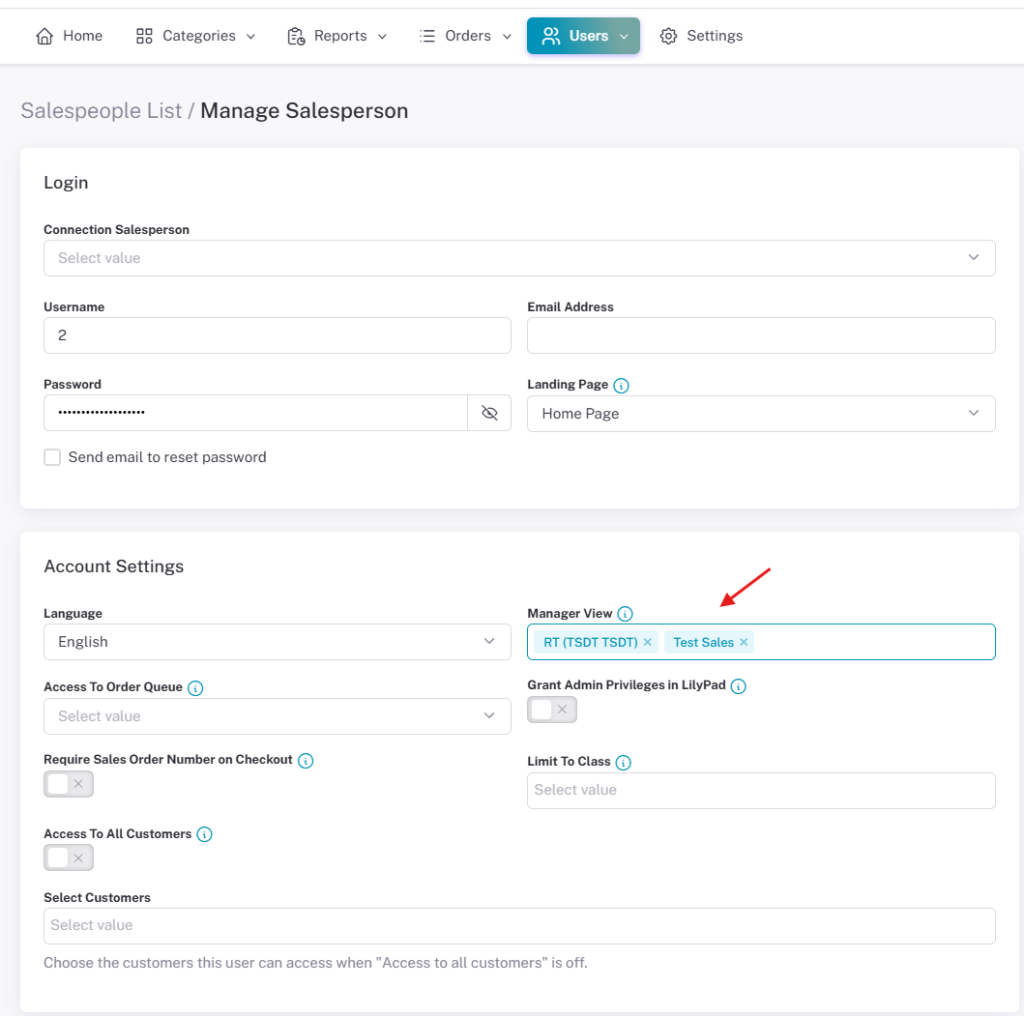
- Manager View — When this setting is active, a Manager View drop-down becomes available while creating a new salesperson, letting that user act as “manager” over other selected users.
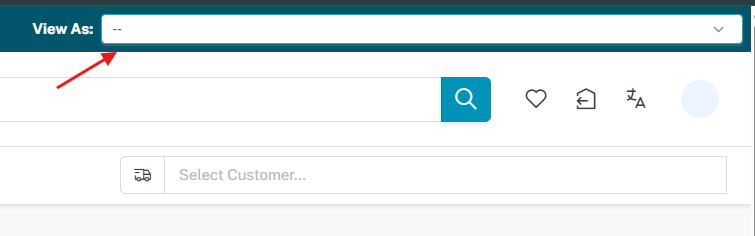
When the manager logs into Vortex, a drop-down in the upper right lets them log in as any salesperson they manage. Any number of salespeople can be placed under a manager.
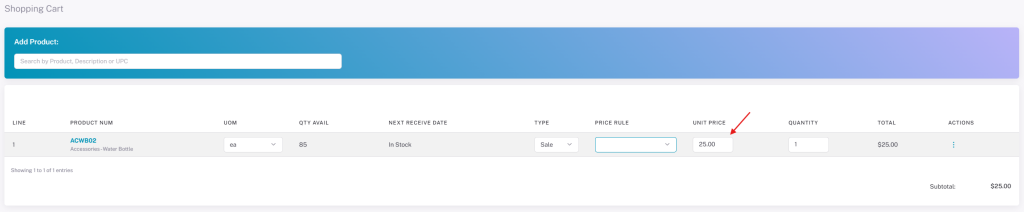
- Price Override — Lets salespeople override system pricing by altering the cost of products in the shopping cart under “Unit Price.”
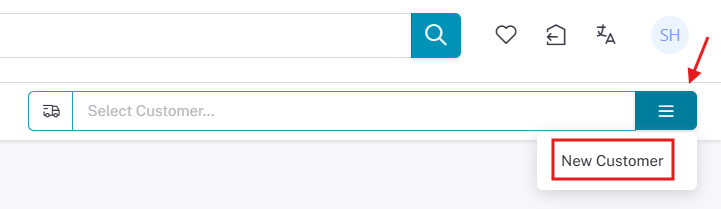
- Add Customer — Lets the salesperson create new Database customers directly through LilyPad.
Users can select the blue box next to the “Select Customer” box at the top right. They will see a drop down for New Customers and will then be prompted to fill out the information for this new customer.
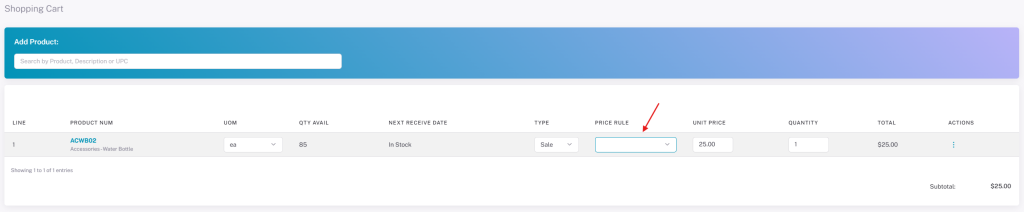
- Select Pricing Rule — Lets the salesperson set which pricing rules apply to a line item, shown as a “Price Rule” drop-down in the cart.
This is only available if the customer has multiple pricing rules that could be applied
General – Tax #
- Tax Line Item Toggle — This setting will create a Tax box toggle on the shopping cart.
Users can select this box to make that line item taxed on the order.
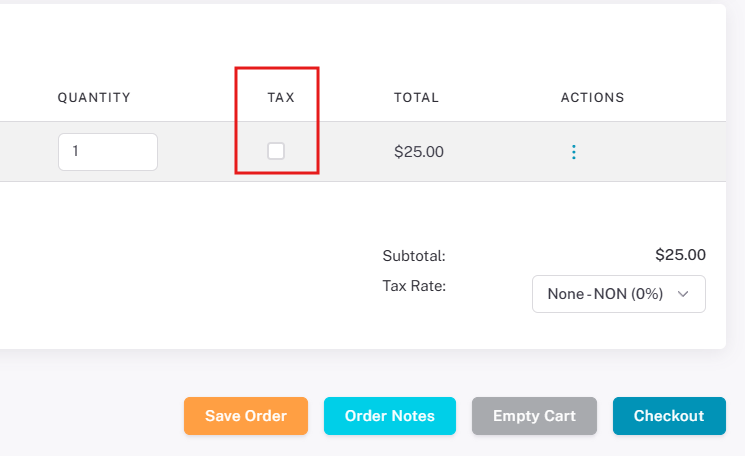
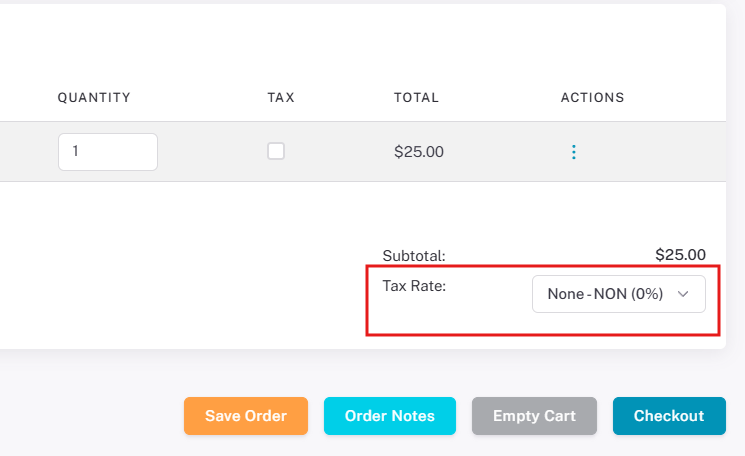
- Tax Rate Drop Down — This setting will create a tax rate drop down box on the shopping cart.
This will let users select which tax rate should get applied for this order
Security #
- Enable 2-factor Authentication — This will send a 2-factor authentication email to the user when they attempt to login to LilyPad with their account.