Disclaimer: Not all features shown are available with the standard LilyPad Vortex package.
Transfer Orders #
In this section, we will go over all the settings that apply to Transfer Orders in LilyPad Vortex
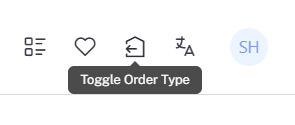
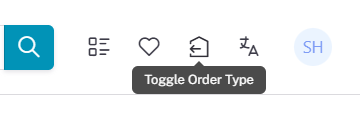
- Transfer Order — Allows the creation of transfer orders. A button will appear at the top right of the screen for users to toggle between Transfer Orders and Sales Order.
- Transfer Order Default Status — Sets the status for transfer orders imported into your database (Issued or Entered).
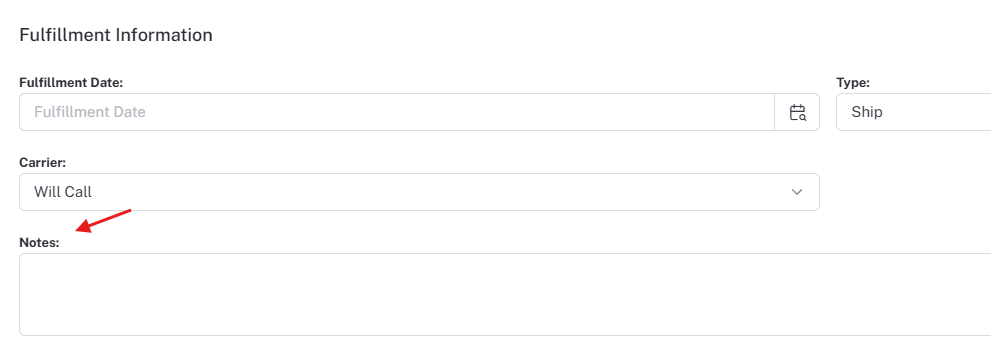
- Custom Notes Field — This uses custom fields to enter additional notes/instructions for an order. You can create the custom fields within your database.
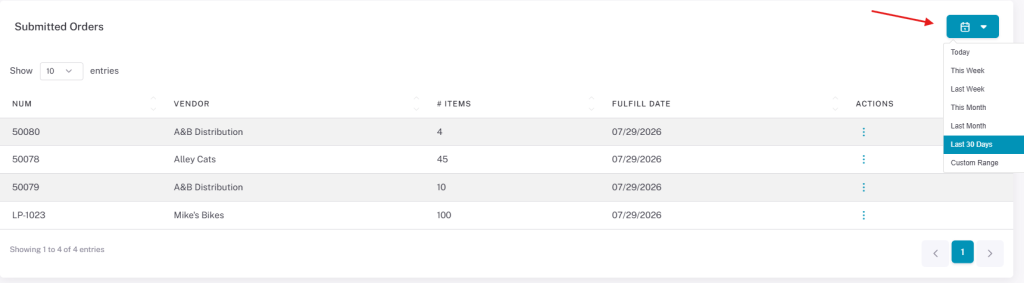
- Default Saved Orders Lookback Time Frame — Sets how far back past saved transfer orders are loaded from (e.g., today, last week, last month). Viewable under Orders → Transfer Orders → Saved.
- Default Submitted Orders Lookback Time Frame — Sets how far back past submitted transfer orders are loaded from. Viewable under Orders → Transfer Orders → Submitted.
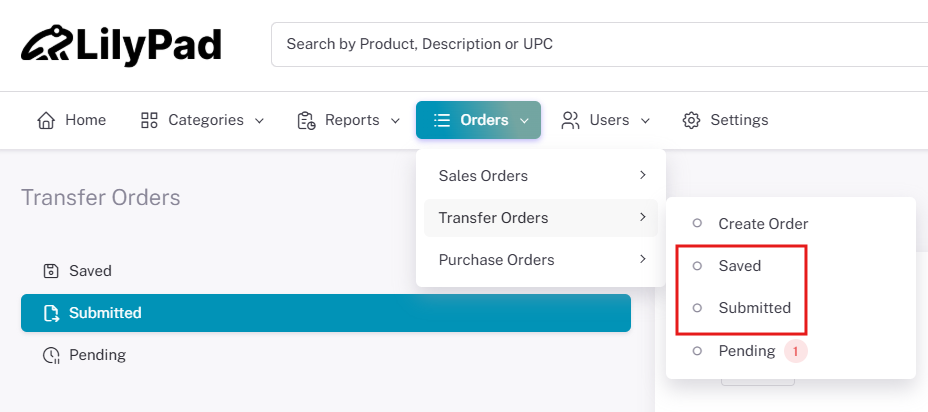
- Transfer Order Drop Down — Allows viewing of submitted and pending transfer orders via the top-right “Orders” drop-down.
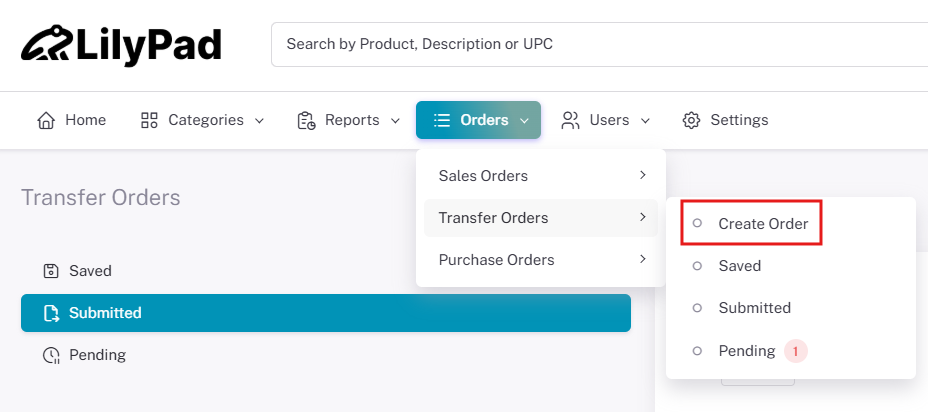
- Show ‘Create Order’ Link — Shows the “Create Order” link in the “Orders” drop-down at the top right, instantly taking the user to the shopping cart to start an order.
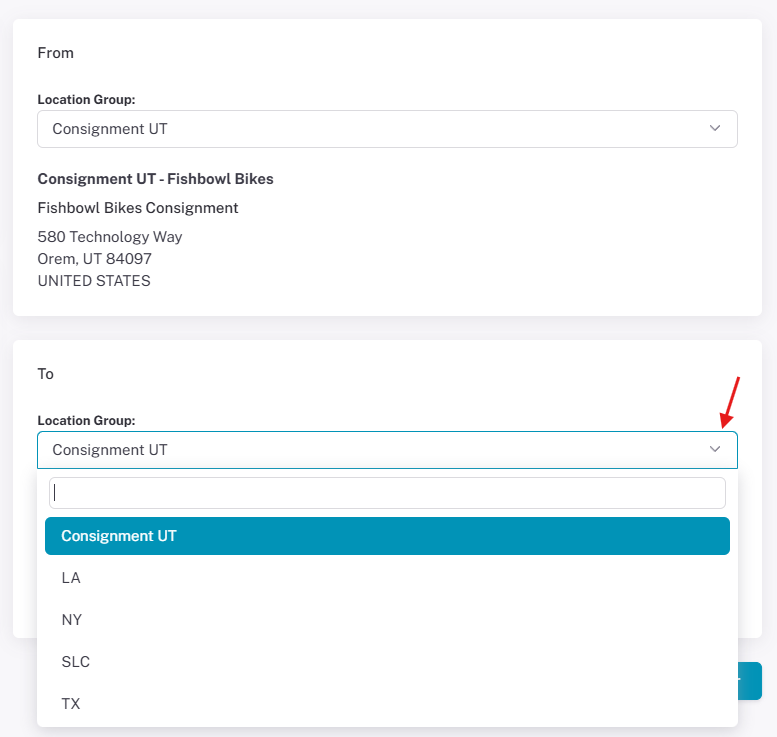
- To/From Address Drop Down — Enables a drop-down for locations in the to/from section when submitting transfer orders. To/From addresses appear on the checkout page for transfer orders.
- Reverse To and From Address — This setting will change the To and From addresses when sending the order over to your database.
Purchase Orders #
In this section we will go over the settings that apply to Purchase Orders on Lilypad.
- Enable Purchase Order — This will allow Purchase Orders to be placed through LilyPad.
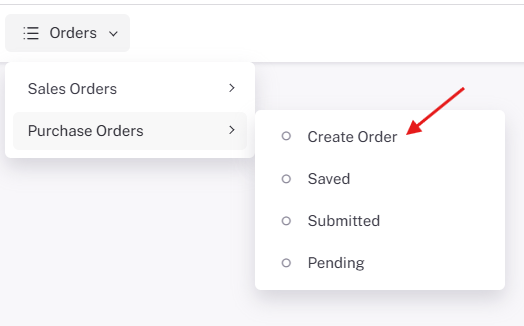
- Default Saved Orders Lookback Time Frame — Sets how far back past saved purchase orders are loaded from (e.g., today, last week, last month). Viewable under Orders → Purchase Orders → Saved.
- Default Submitted Orders Lookback Time Frame — Sets how far back past submitted purchase orders are loaded from. Viewable under Orders → Purchase Orders → Submitted.