Users will have the ability to scan throughout the Pick module. Scanning can be done directly through the mobile devices native camera and does not require any additional apps or attachments.
The Pick module is where users will go to complete picks for their sales, transfer and work orders.
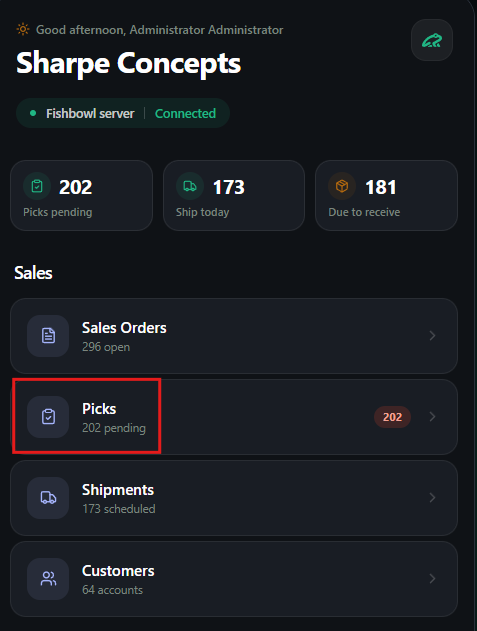
The pick module can be found under the “Sales” section or at the bottom quick bar.

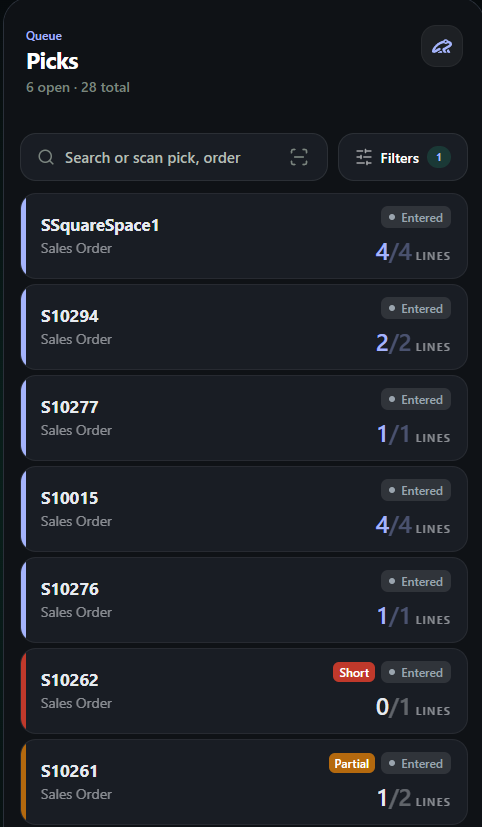
When users navigate to the pick screen, they will see many picks listed.
You can either search for a specific order number or scan a bar-code to find the order you need to pick.
- These picks will be displayed with different colors if there are any discrepancies or if the pick is in certain statuses.
For example we will show orders in different colors if the are short or partially picked.
Once an order is selected, the pick screen will open and display the items ready to be picked.
Users will have two ways to pick the line items on the order.
- Using the scan feature, users can scan part or pallet barcodes to pick line items.
- Manually going through the line items to pick them.
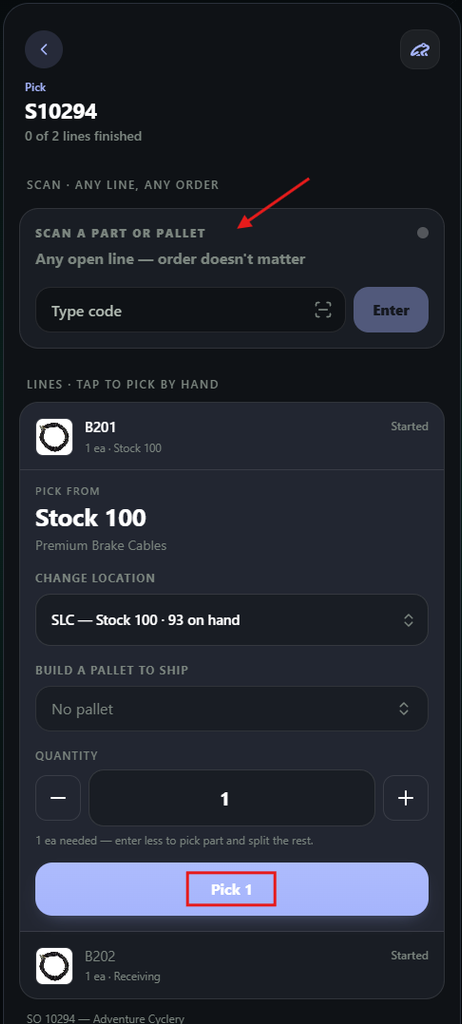
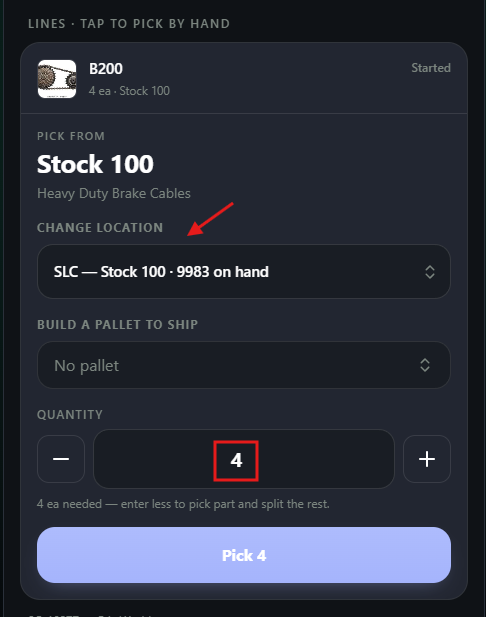
To pick the line items, select the location you want to take the inventory out of and then choose the quantity.
Once those selections are made, select the blue “Pick x” button under the line item.
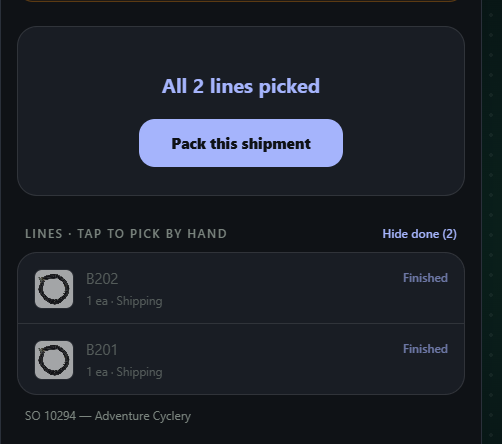
Once all the lines are picked, the system will ask if you would want to move directly to the pack screen for this order.
At this stage, the picking process is complete.
Building a Pallet During a Pick #
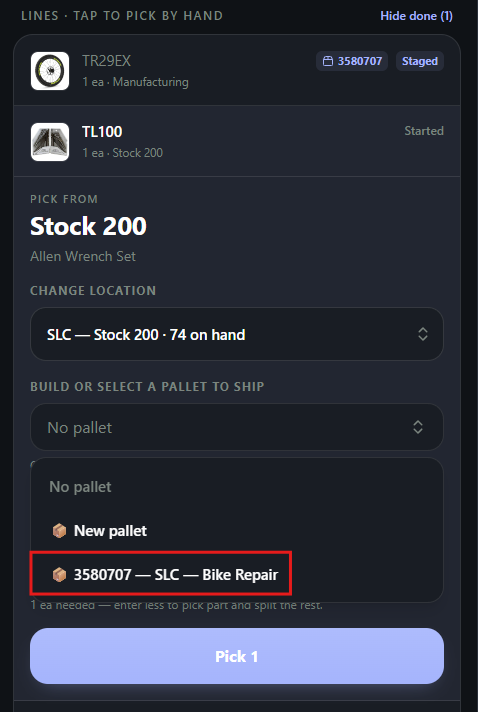
Users can create pallets for line items as they are picking them.
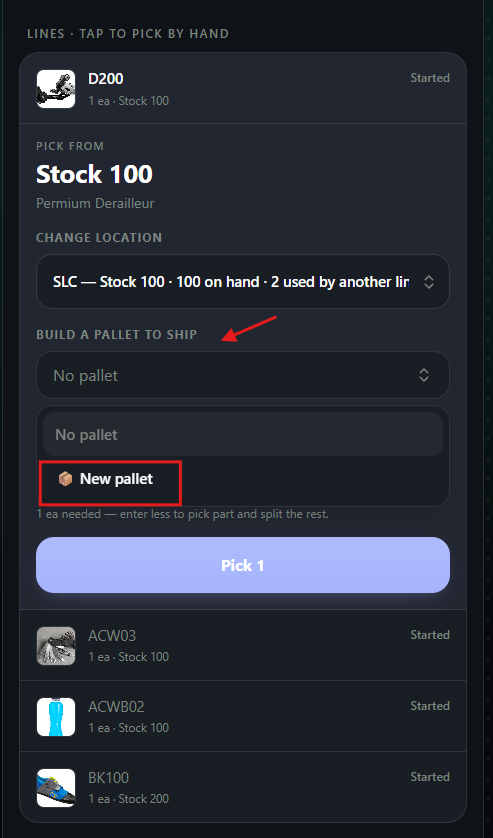
To do this, users will need to choose the new pallet option on the line item.
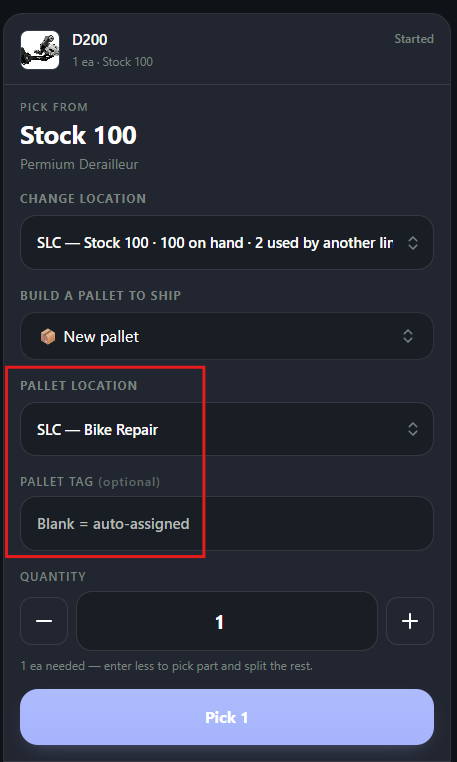
When a new pallet is started, two new fields will appear on the line item.
The first is for the user to select a location for the pallet and the second is for users to enter in a pallet tag/number.
- If users do not enter a pallet tag, the first available pallet tag will be used.
Once a new pallet is made, subsequent line items can be added to it.
Users will see the newly created pallet appear on the list when they move onto the next line item.