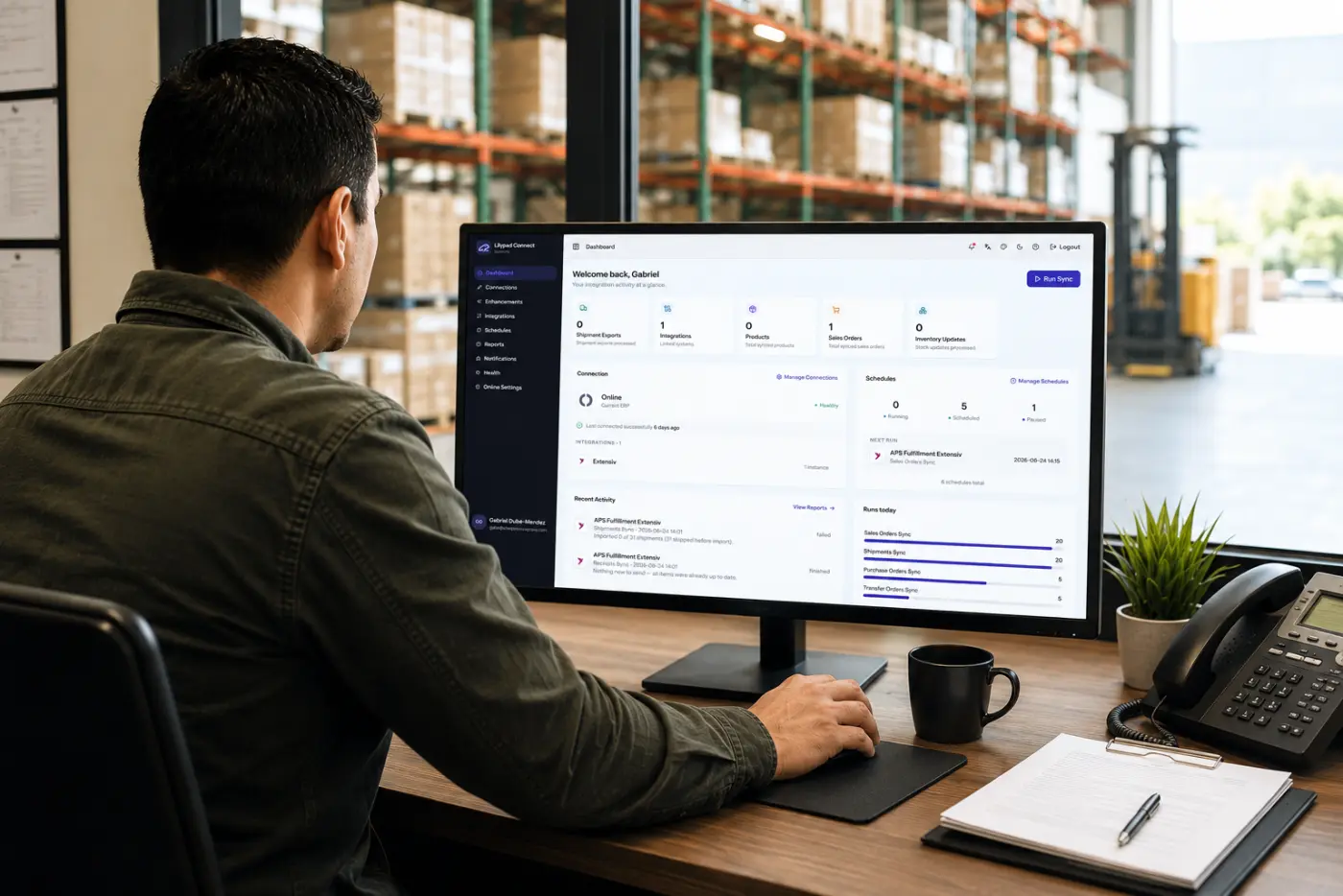










Dashboard
The Dashboard is the first page users see when they open Connect.
The Dashboard shows sync activity at a glance:
- Counts: shipment exports, integrations, products, sales orders, inventory updates, and errors in the last 24 hours.
- Connection: your ERP and whether it’s Healthy, plus your installed integrations.
- Schedules: how many are running, scheduled or paused, and the next run.
- Recent Activity and Runs today: the latest sync runs and their results.
Running a Sync Manually
Syncs can be run at any time, without waiting for their schedule.
- Select Run Sync at the top right.
- Choose the integration.
- Choose the module, such as Sales Orders Sync, Sales Returns Sync, Products Sync, Shipments Sync or Inventory Sync.
- Choose the direction: Import or Export.
- Optionally, enter specific order numbers, separated by commas, or a date range of up to 30 days.
- Turn on Force sync to re-sync items even if they were already processed.
- Select Run now.
A message confirms Sync started, and the run shows under running tasks at the top of the page. When it’s done, it appears under Recent Activity. Select View Reports to see its details. See the Reports page.