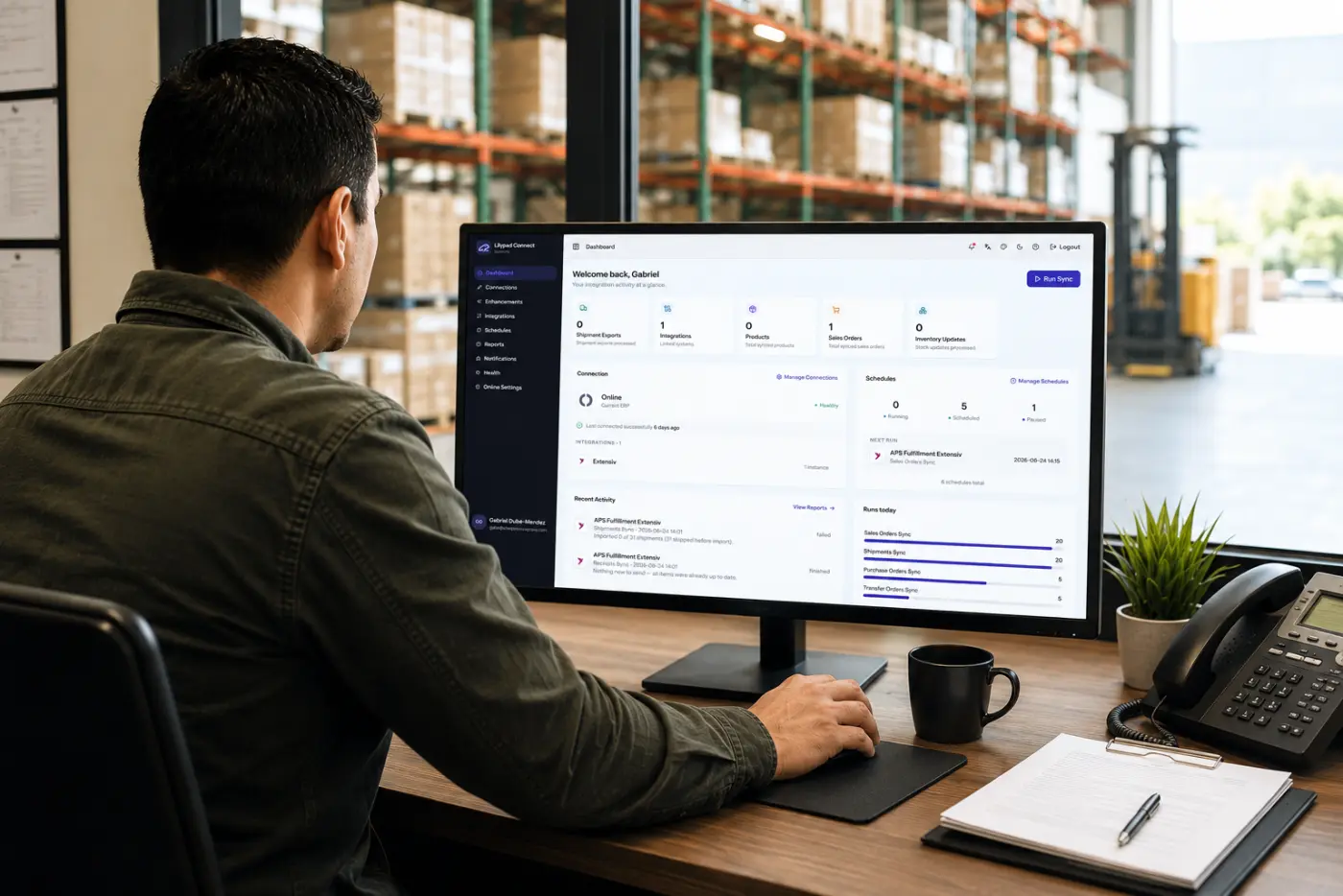
LilyPad Connect turns every Shopify order into a Katana sales order, sends the tracking number back to Shopify when you ship, and keeps your Shopify stock matched to what Katana says is on the shelf.
Order #1042 → SO‑1042Customer, addresses, items and prices
Sound familiar?
Where Shopify and Katana drift apart.
Someone re-types every web order.
Today
Copying Shopify orders into Katana by hand costs hours a week, and every typo becomes a wrong shipment.
With Connect
New Shopify orders are created as Katana sales orders, with the customer, addresses, items and prices.
Shopify sells what you don’t have.
Today
When Shopify’s stock count drifts from Katana’s, you oversell, cancel and apologize.
With Connect
Katana’s stock levels go to Shopify for each location you choose, so the store only sells what is on the shelf.
“Where’s my order?”
Today
The package left days ago, but Shopify still shows the order as unfulfilled with no tracking number.
With Connect
When the order ships in Katana, it is marked fulfilled in Shopify with the tracking number.
What syncs
Exactly what moves, and which way.
Each of these is its own switch: turn on what you need, set how often it runs, and run it on demand whenever you want.
01
Shopify → Katana
Orders
New Shopify orders are created as Katana sales orders, with the customer, addresses, line items and prices. Nobody re-keys a thing.
02
Katana → Shopify
Fulfillment and tracking
When the order ships in Katana, Connect marks it fulfilled in Shopify with the tracking number, so the order status your customer sees is always current.
03
Katana → Shopify
Inventory
Katana’s stock levels are pushed to Shopify for each location you choose, so the store only sells what is really on the shelf.
Getting started
We set it up with you.
1. Install the Connect app on Shopify. Approve the app in your Shopify admin. No passwords to hand over.
2. We map it to your Katana. Products, customers and locations are matched to how your Katana is set up, by people who build on Katana every day.
3. Choose the schedule and go live. Decide how often each sync runs. Every run is logged, and anything that fails is flagged with the reason.
Example run · on your schedule or on demand
In
Order #1042 → Sales order SO‑1042 Customer, addresses, items and prices
Out
Shipped in Katana → Fulfilled in Shopify With the carrier’s tracking number
Out
In stock in Katana → Available in Shopify For each Shopify location you choose
Built around your store
Your workflow isn’t standard. The sync doesn’t have to be either.
We add rules for the way you actually work: which orders come across, how your Shopify SKUs match your Katana items, and which locations feed which store’s stock.
Hosted and supported by LilyPad
Every record logged, with the reason for anything that fails
Also syncs your other channels from the same place
“They have gone above and beyond to make sure things are working how our company needs. Ryan and his team have been so happy to help. You have our business from now on.”
Sundowner TrailersAmerica’s trailer since 1976
“Thank you for writing a comprehensive integration out of the gate. I have not heard a single complaint from colleagues. An amazing feat.”
Kifaru InternationalPremier hunting gear
“Hands down the best provider and consultants in the industry. Five years in and we have not been disappointed once. They keep us moving forward.”