Reports #
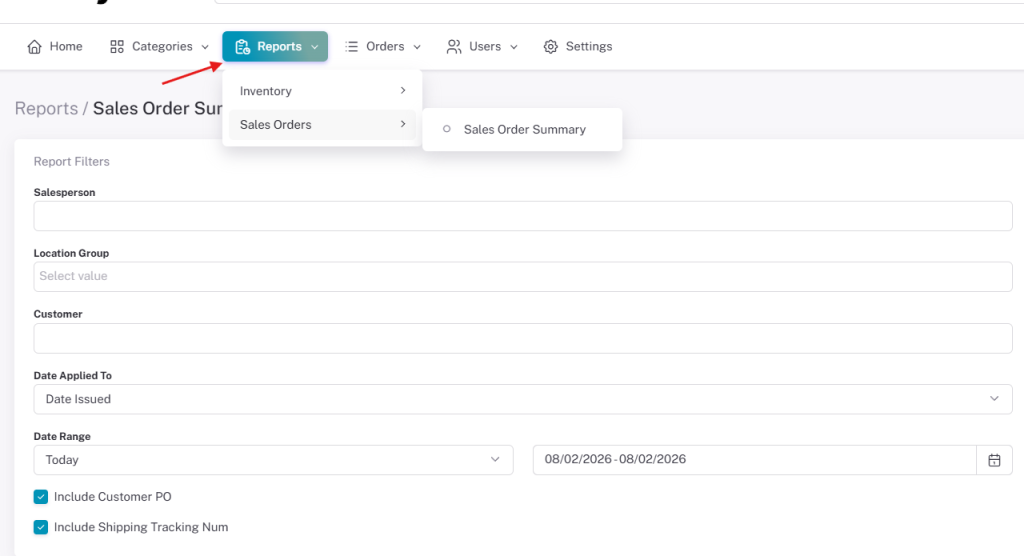
All LilyPad sites come with 2 reports that users can run, a Sales Order Summary and Inventory report.
Owners of the Lilypad site can determine who has access to run these reports through the Lilypad setting.
These can be turned on or off for all LilyPad accounts through the Reports setting.

Reports can be run from under the “Reports” tab on the left side of the screen. Users can enter in the parameters they want the report to display in the boxes available to them.
They can then run the report to generate the applicable imformation.
Notifications #
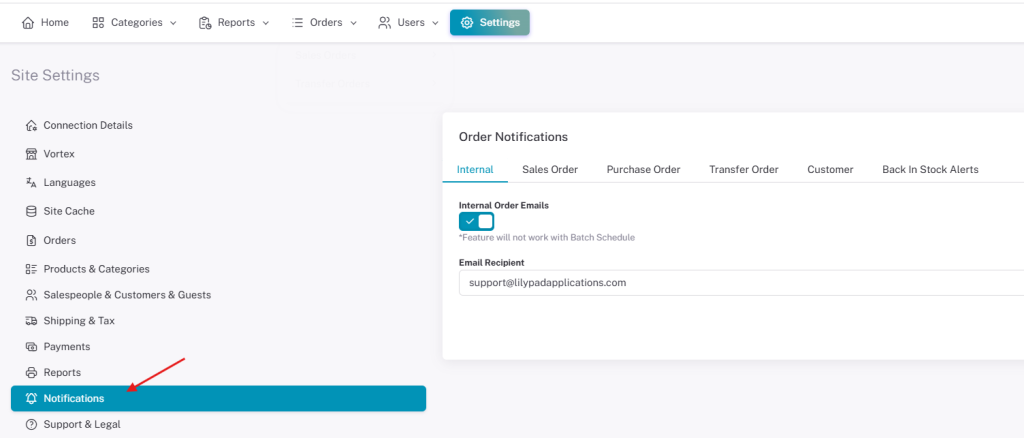
LilyPad owners have the option to setup automatic email notifications to be sent out for any orders placed through LilyPad.
These include Sales, Purchase and Transfer orders. There are also emails to notify you when new customers are created or when products become back in stock.
These emails can be setup under the “Notifications” settings.
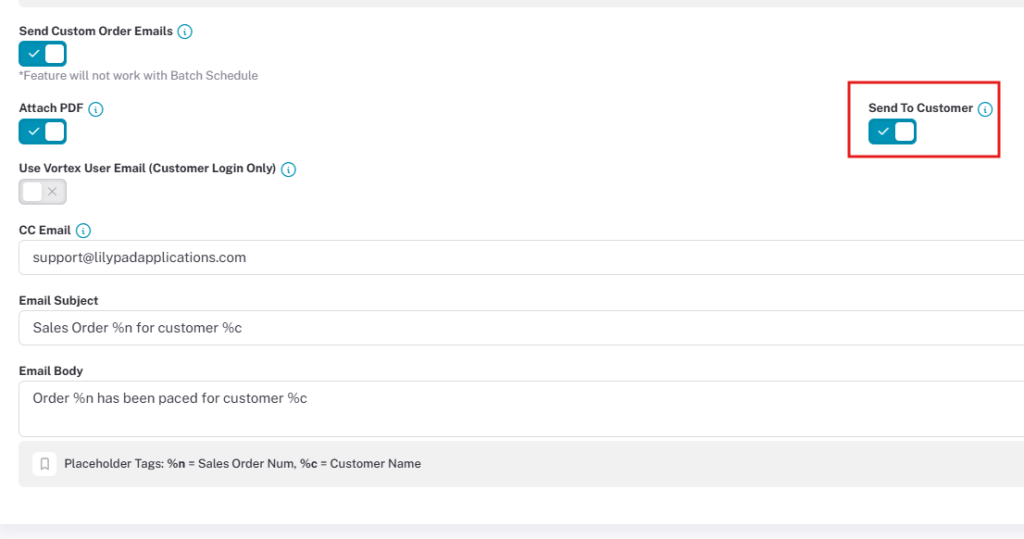
Under the Sales Order notifications there is a setting that allows emails to be sent to customers once orders are placed.
If you select the “Custom Order Email” setting, you can setup notifications to be sent to customers with a copy of the order placed for them and a fully customizable email subject and body.
This resource can help readers who want a quick reference when comparing licensing notes and payment options such as australian dollar casino deposits and instant withdrawal casinos australia.