Disclaimer: Not all features shown are available with the standard LilyPad Vortex package.
Support Information #
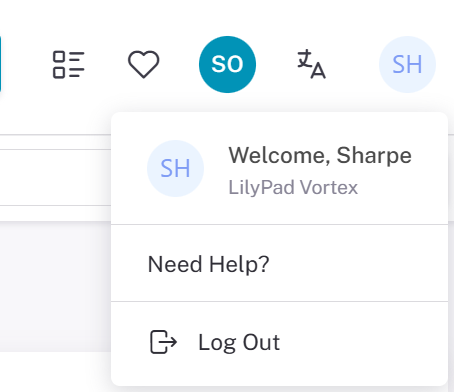
Support Information is found in the “Need Help?” section in the top right corner. To access this drop-down, click your name in the bubble (for example, the “AD” in the top right corner). You can also access the support information from the login screen.
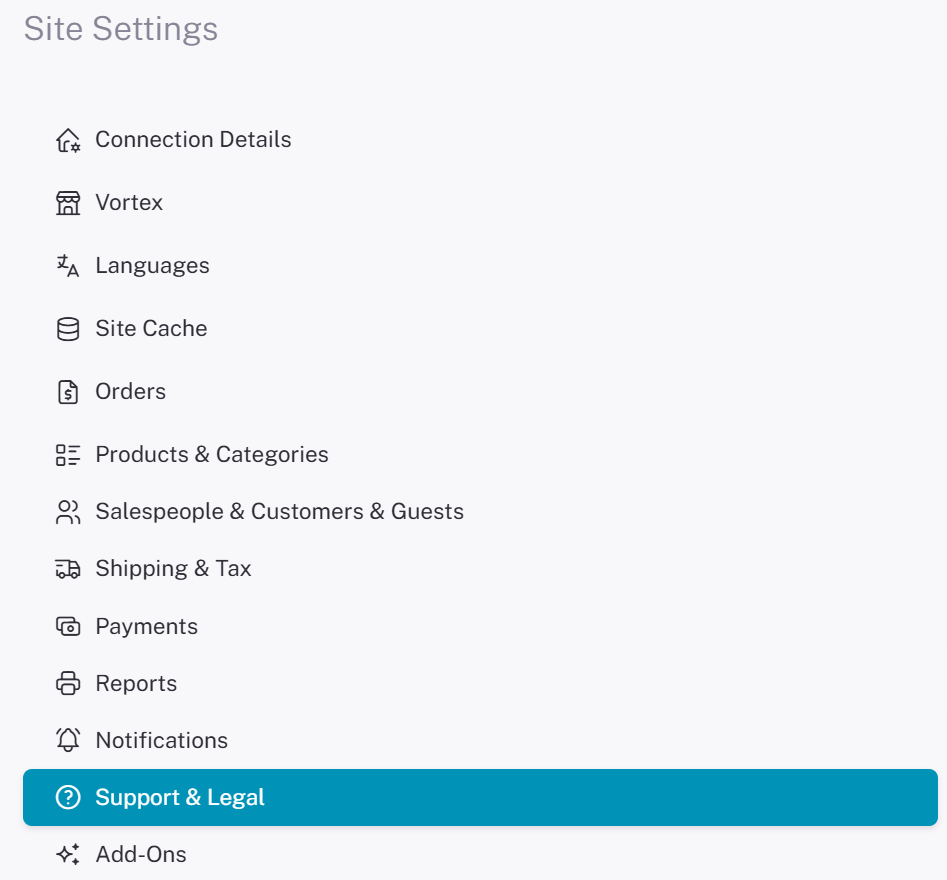
To edit the Support information that is displayed, navigate to the Lilypad Settings and go to “Support and Legal”.
Support Settings #
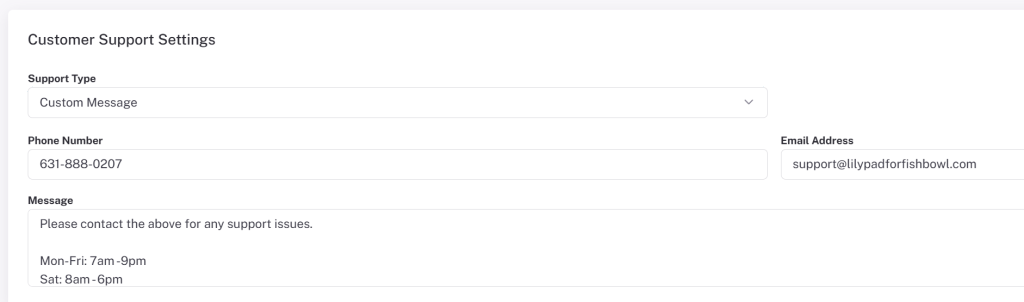
Support Type — Lets the user select what type of customer support message is displayed under “Need Help.” Choose a direct website redirect or a custom message.
Custom Message — These settings appear when Custom Message is selected as the support type:
- Phone Number (Customer/Salesperson) — A phone number for customers to call for support, displayed under “Need Help?” at the top right.
- Email Address (Customer/Salesperson) — An email address for customers to use for support, displayed under “Need Help?” at the top right.
- Message (Customer/Salesperson) — A text box for a custom support message, displayed under “Need Help?” at the top right.
- Website URL (Customer/Salesperson) — A link to your website for customers to use. Only available when “Website Redirect” is the support type. Displayed under “Need Help?” at the top right.
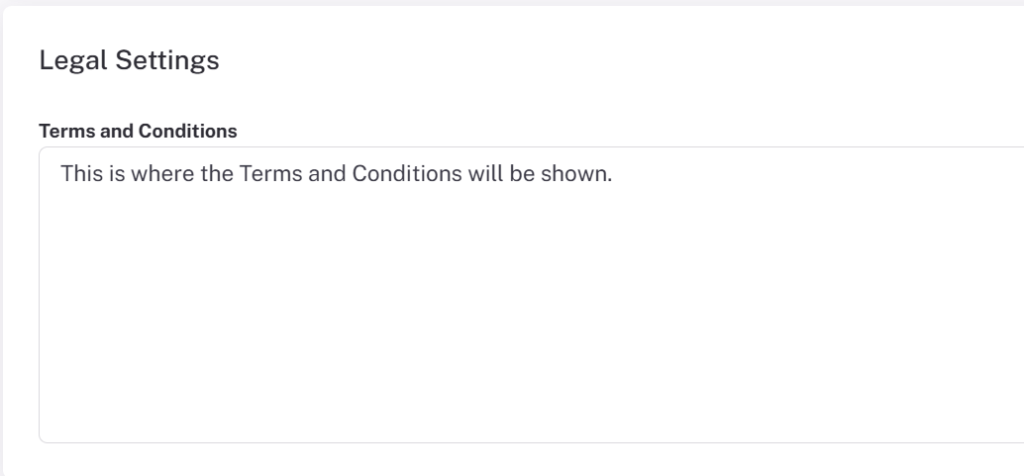
Legal Settings #
Terms and Conditions — Lets the user set up any terms and conditions they have by entering them into the text box in the Terms and Conditions setting. They are viewable at the bottom right of every Vortex page.