Sales Order Settings #
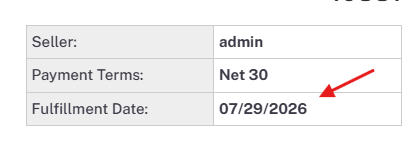
- Date Format — Determines the date format when sending orders to your database (M/D/Y or D/M/Y).
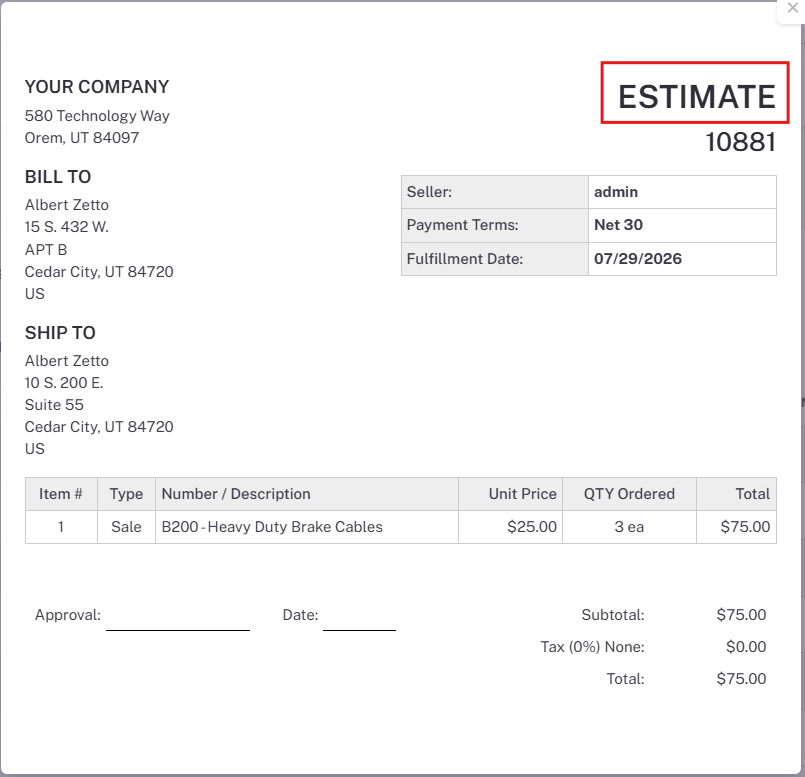
- Default SO Status — Changes what status sales orders are set to when sent to your database (Estimate or Issued).
Estimates will need to be reviewed in your database before they are issued and a pick is made for them.
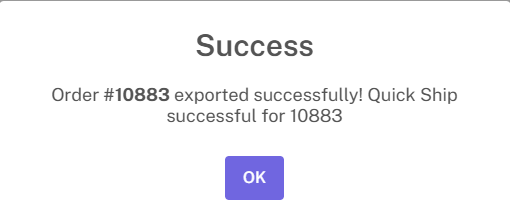
- Enable Quickship — Allows orders to be quick shipped once they are placed. Quick shipping completes the pick/pack/ship process for that order.
Orders must be going to your database in the “Issued” status for this setting to work.
There will be a prompt to quickship orders on the checkout page.

- Auto Quickship — This will automatically quickship all orders once they are placed on LilyPad. No prompt will appear when this setting is active.
Once the order is placed, there will be a success message mentioning if the Quickship went through successfully.
- Add Items Directly to Cart — Allows customers to place items into the cart without being prompted to the product information screen.
- Show List Price — Only the list price is shown for products; discounts / pricing rules will not be visible for any products on Lilypad.
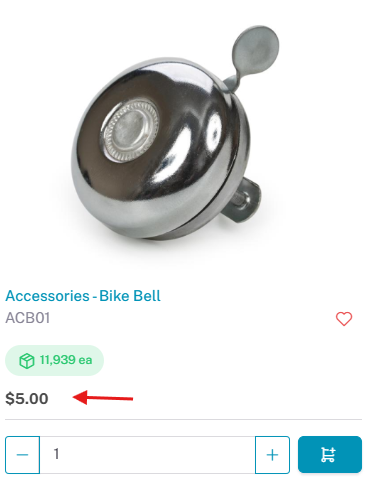
- Calculate Price in Cart — Pricing rules and discounts are only applied when an item is added to the cart. Cannot be used with “Show List Price.”
This is the price the customer sees on the product tile:
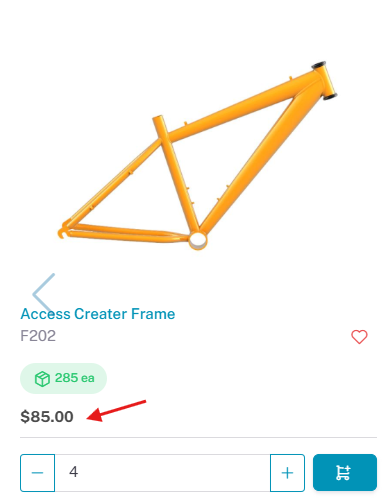
Once the product is added to the cart, the pricing rule is applied, and the price updates:

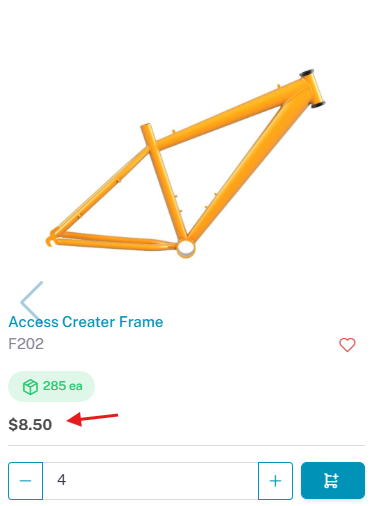
- Don’t Show Price Comparison — When ON and an active pricing rule exists, the list price for those items is hidden; only the price set by the pricing rule is shown (the regular pre-discount price is not displayed).
The list price for this product is $85. With the setting turned on, it is only showing the price after the discount is applied which is $8.50.
This external site maintains a searchable list of Australian pokie machines and related informational pages that cover pokies, licensed online casinos, bonuses and common payment methods. It presents summaries and links to individual game entries rather than offering rankings or endorsements. The resource can be useful to readers seeking an overview of available pokies and basic practical details. Visit list of australian poker machines for direct access to the site.
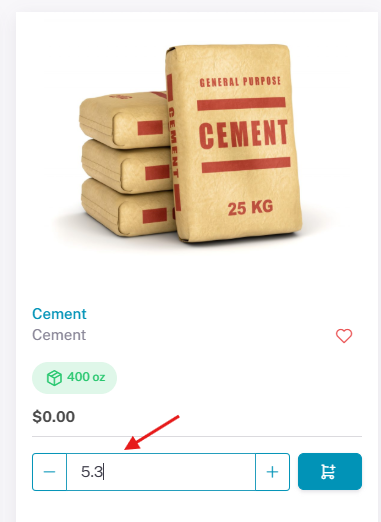
- Allow Decimals for QTY — When ON, quantities can be expressed with decimals as well as whole numbers.
This does not work with products with a UOM of “each”
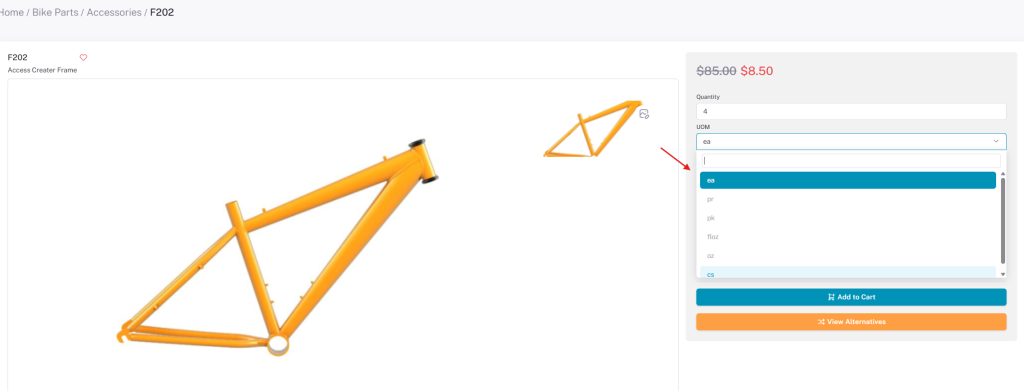
- UOM Conversion — Enables the “Unit of Measure” drop-down (e.g., each, 6-pack, 12-pack, etc.).
UOM conversions are setup directly on your database and all conversion for a given UOM are displayed on the Lilypad drop down.
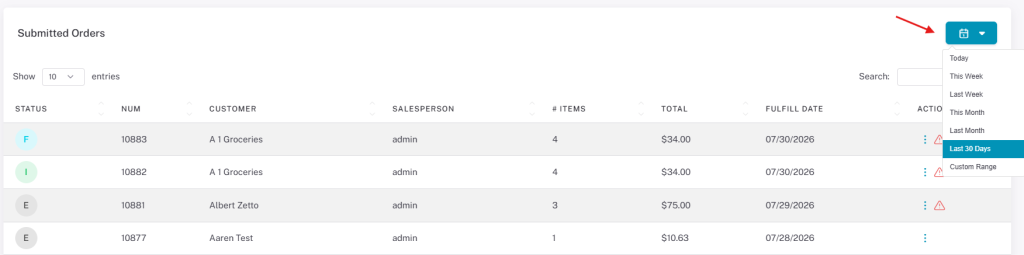
- Default Lookback for Saved/Submitted Orders — These two settings determine how far LilyPad looks for orders when they are being searched.
Since this only determines the default, all other lookback options are still available and can be selected.