Disclaimer: Not all features shown are available with the standard LilyPad Vortex package. LilyPad Vortex comes with 2 preset reports: Available for Sale and Sales Order Summary Report.
There are many custom and add-on reports that can be purchased or created if you require a specific report on your site.
Please reach out to our support team for any inquires regarding reports at support@lilypadapplications.com
Running a Report #
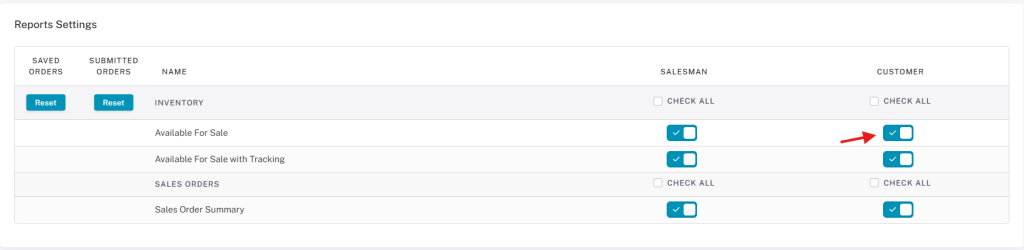
In the Reports setting, you can specify who has access to which reports — only Salespeople, only Customers, or both.
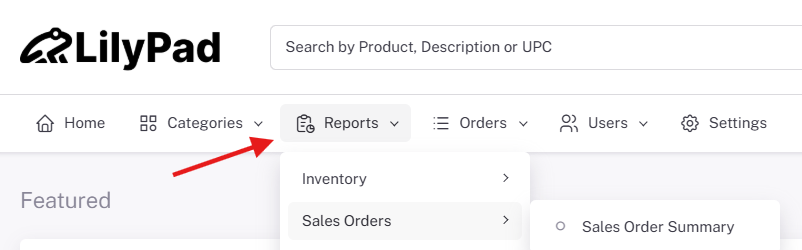
To run a report, click the report from the “Reports” drop-down on the left side of the Vortex page.
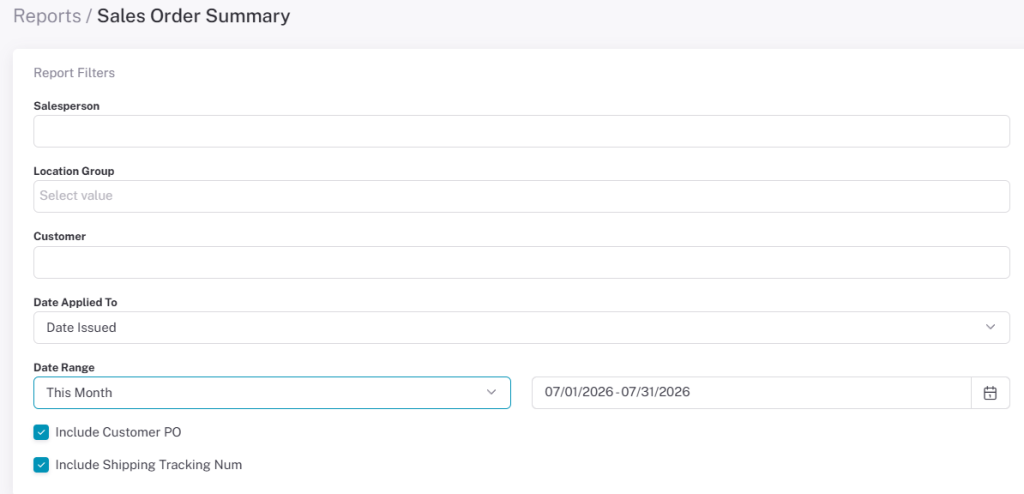
Once you select a report you can change any information available to you and run the report when ready.
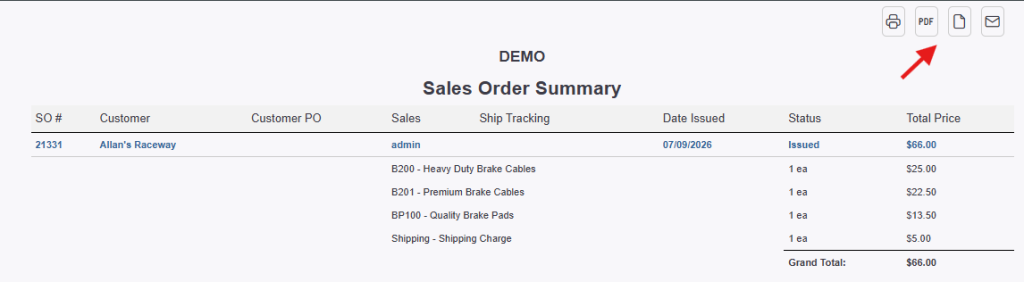
A new tab opens on your browser displaying the report and any information that fit the criteria of your search.
You can also turn it into a PDF or CSV file, print it, or email it using the buttons at the top right.