Disclaimer: Not all features shown are available with the standard LilyPad Vortex package.
Logging In #
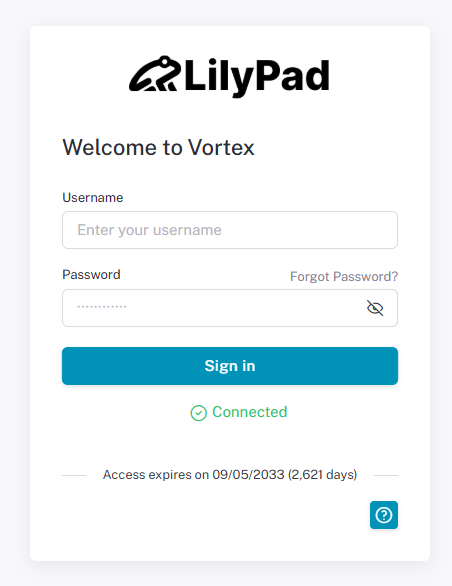
Once you have received your LilyPad Vortex URL, the first place you will see is the login screen. All LilyPad users will come to the login page to access the site.
To log into Vortex, enter the password and username you were provided. Users can change the password at any time using the “Forgot Password” option.
Resetting Your Vortex Password #
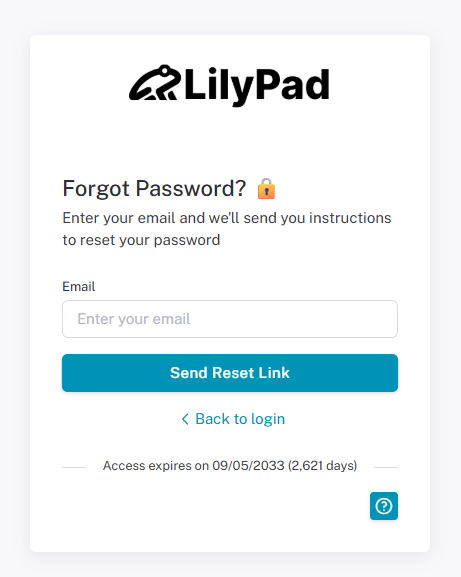
Any user can reset their passwords on their own using the Forgot Password button on the login page — admin users do not have to get involved to reset customer passwords.
If any user forgets their password, they can click the Forgot Password button on the login page, which sends a link via email to reset it. The email entered must be associated with the users Lilypad account.
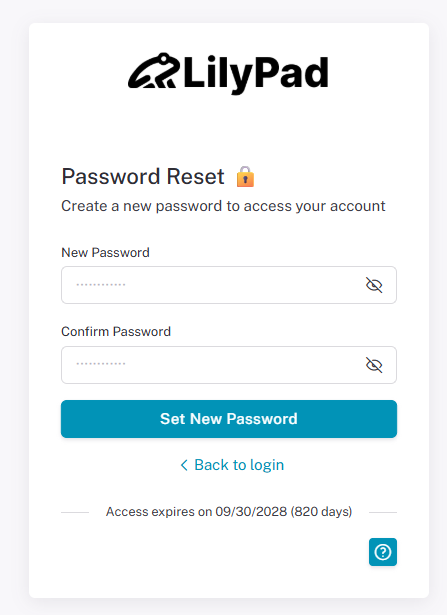
After clicking the link in the email, the customer is taken to a screen where they can enter their new password.
Need Help Link #
The blue “?” button is also featured on the login page so users see any contact information and can get in contact with the admin company if any questions/issues arise.
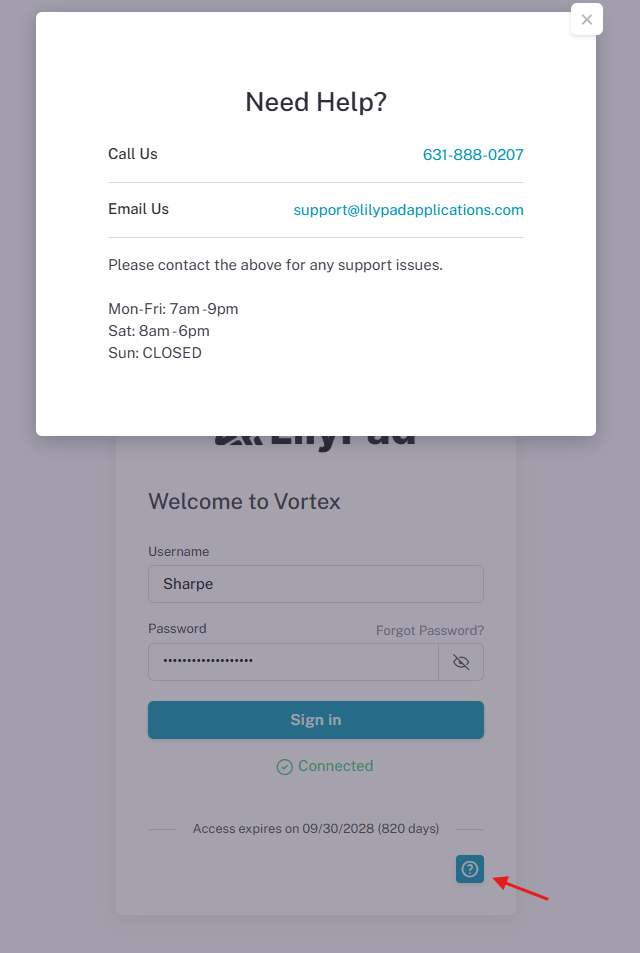
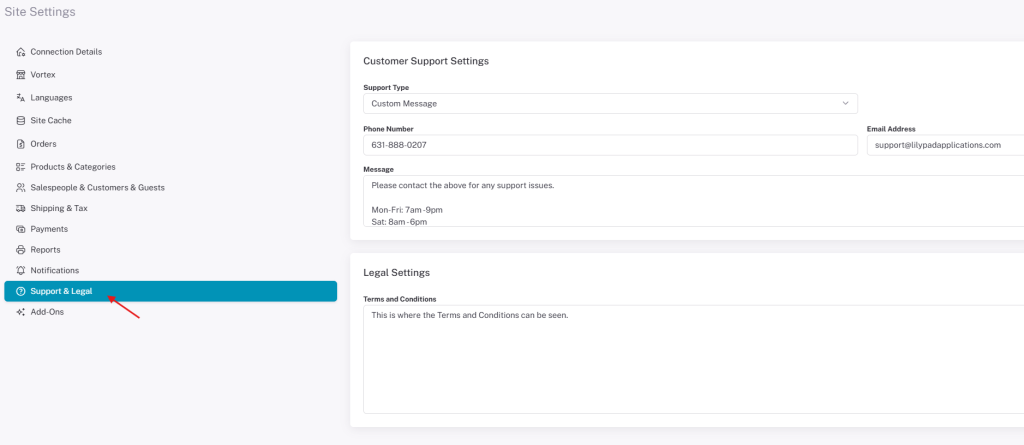
You can set what information is displayed when a user clicks the “?” button from the LilyPad Support and Legal settings. Enter the different types of support information in the Support Information setting.
Home Page #
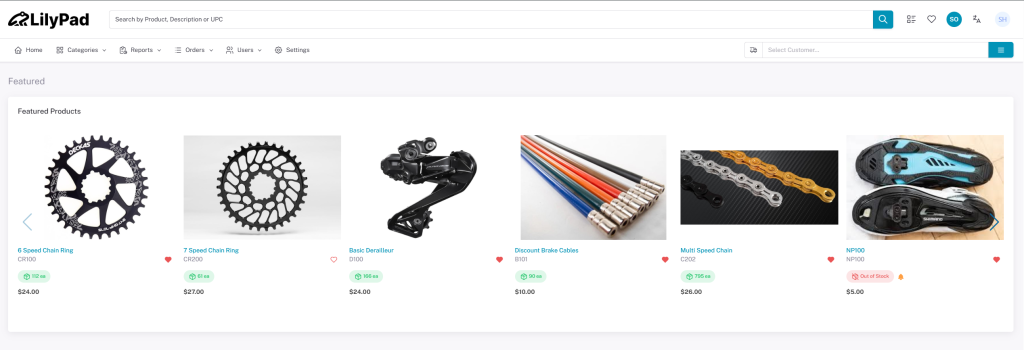
This is the Vortex Home Page. From here you can access the Settings, Reports, Orders and the Categories button on the left to access your product trees.
The home page also has a search bar (top of page) for users to look up products by UPC, item number, or description.
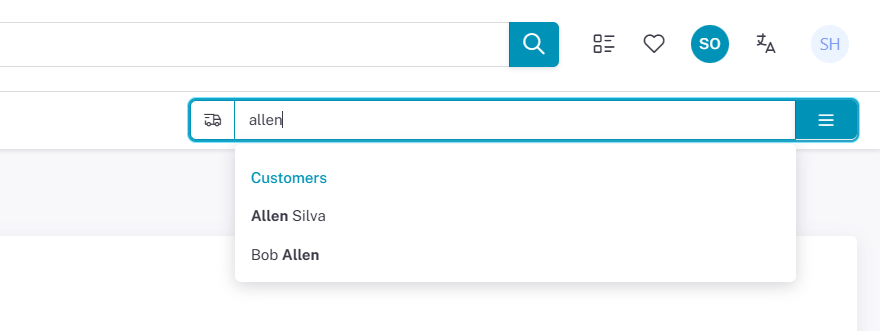
The “Select Customer” bar on the right lets users see the currently selected customer they will be making orders for.
Categories #
Note: Categories in Vortex are the same as product trees from Fishbowl.
The Categories tab shows all product trees the user has synced from Fishbowl. Access to certain product trees can be turned on and off when creating a customer or salesperson account on LilyPad
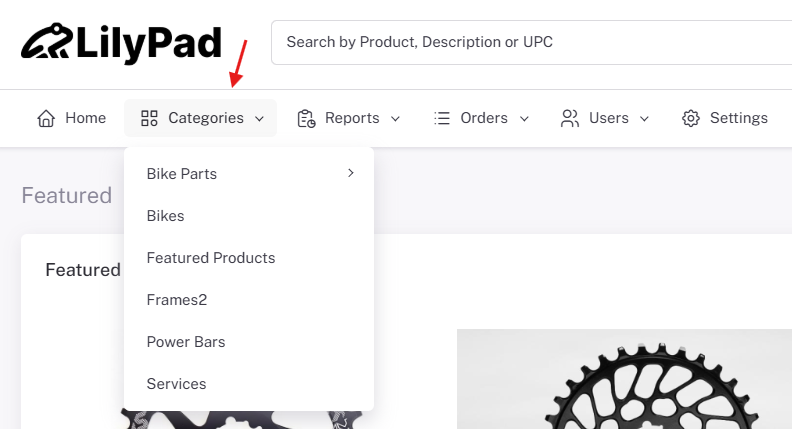
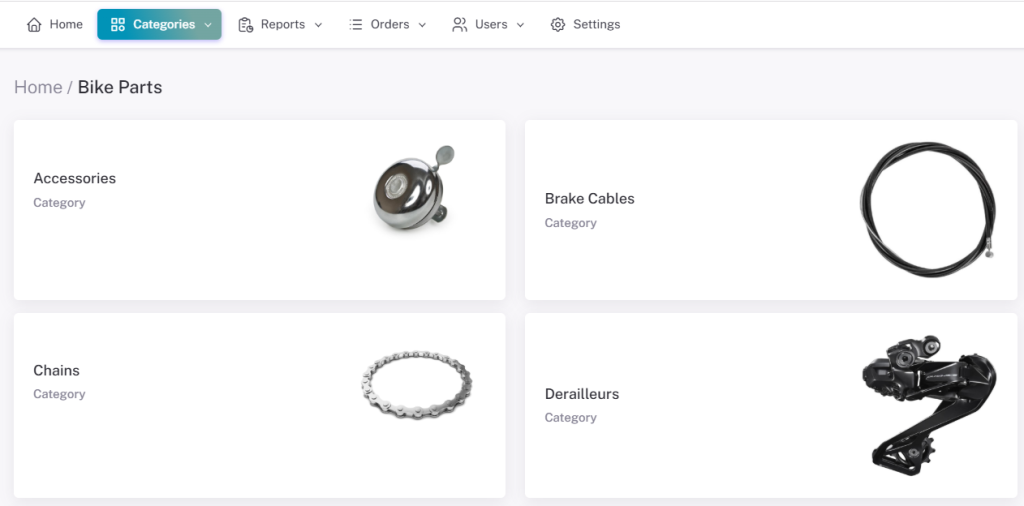
If a category has sub-categories under it, a drop-down will appear and boxes will show the sub-categories. Clicking a box takes you to that sub-category. (For example, here we clicked on “Bike Parts” and a square appeared for each sub-category.)
Reports #
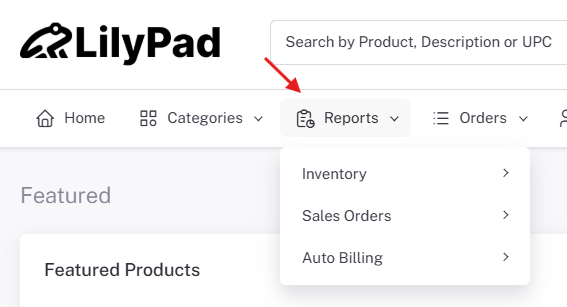
LilyPad Vortex comes with two preset reports: Available for Sale and Sales Order Summary.
Reports can be accessed from the Reports drop-down next to Categories. Reports can be restricted to salesperson-only or customer-only use in the “Reports” setting.
Orders #
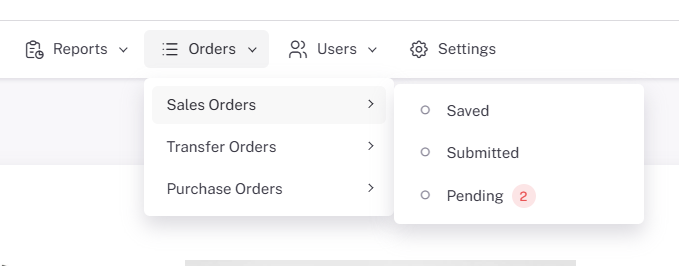
Both salespeople and customers can view their orders from the “Orders” drop-down next to Reports. Three types of orders can be viewed — Sales, Transfer, and Purchase (if applicable). You can view saved, submitted, and pending orders.
Viewing Saved or Submitted Orders #
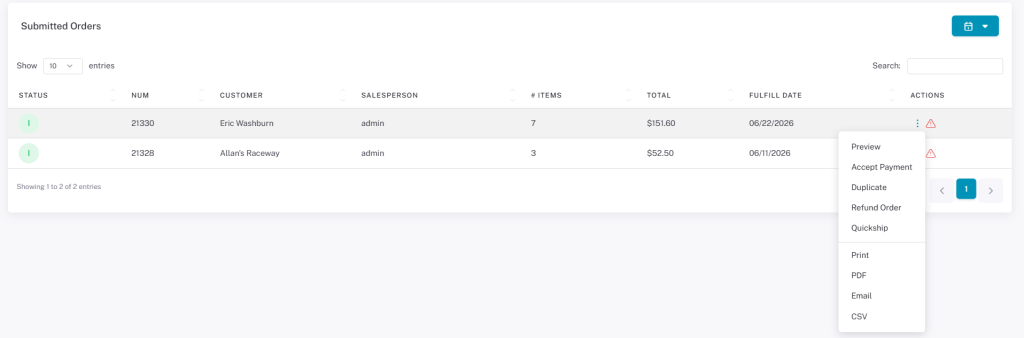
From the “Orders” drop-down, users can see past saved and submitted orders within the specified time frame. Users can change the look-back period using the calendar icon on the right side of the screen. If you already know the order number, you can use the search bar to find it.
Orders display information about who placed the order, the order number, the number of items, and the total cost.
Orders are also marked with a letter on the left showing their status within your database:
- E — Estimate
- I — Issued
- F — Fulfilled
- P — Partial / Picked
For more detail, users can preview an order by clicking the right-hand drop-down. From this drop-down, users can also duplicate, print, email, and create a PDF of previous orders. Clicking “Preview” brings up an invoice for the order.
The page describes typical minimum deposit arrangements and common approaches to payouts without asserting any guarantees. It also outlines how bonuses and pokies are presented by various licensed platforms. Readers who want a consolidated reference on deposit-friendly Australian casino choices may find the collected summaries useful. The resource is presented as an informational guide and should be used alongside independent checks of licensing and terms.